
Before you read the answers
- Check the price on each order row by hand before you trust a lookup.
- Build a short test with an exact match, a missing key and a text key.
- Grade every answer in layers, not by eye.
All examples use original synthetic data. Source row numbers and column letters are shown so you can reproduce the formulas.
Check the figures a lookup feeds into
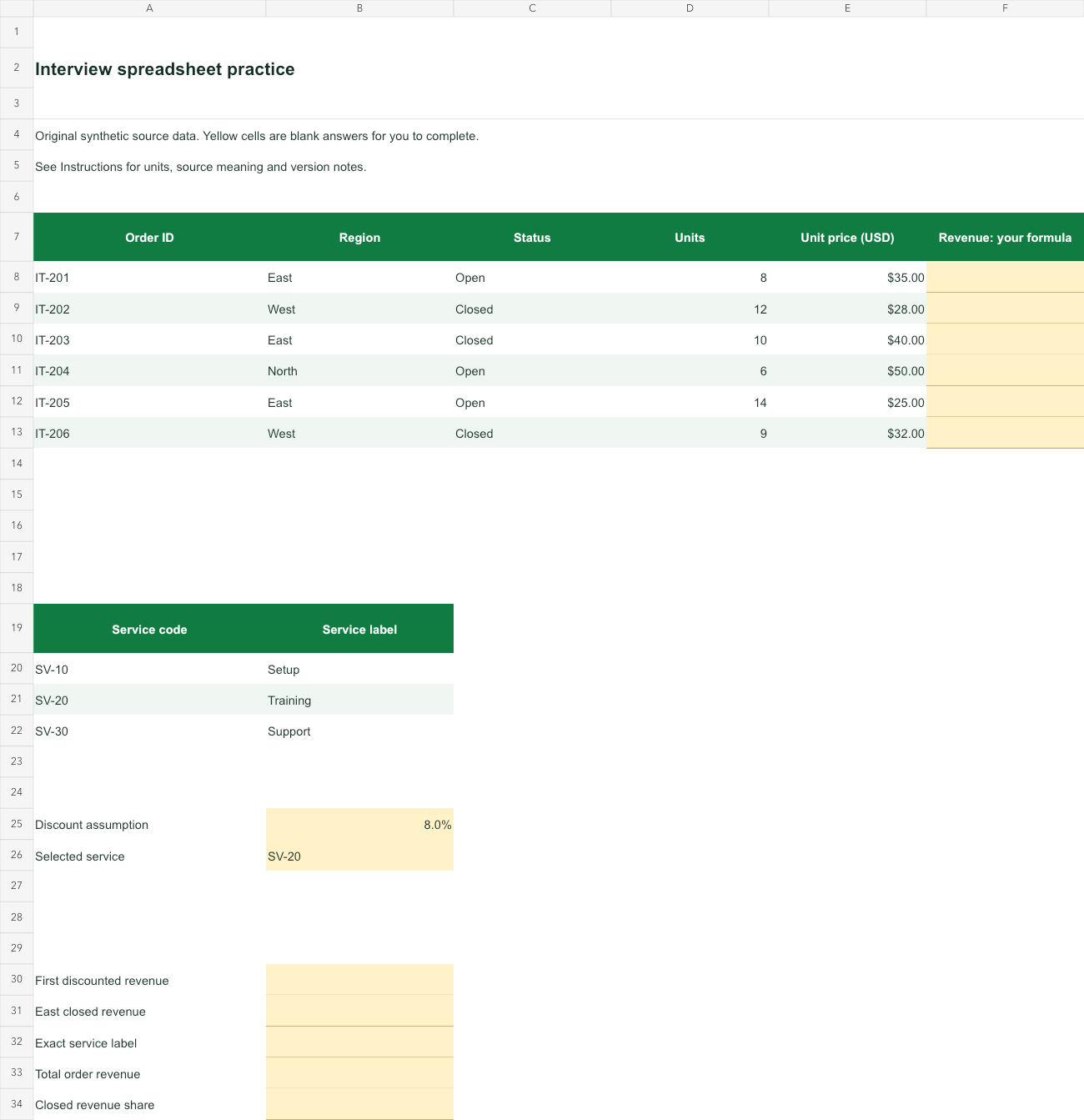
Each order row below carries a unit price, such as one a lookup would return from a price list. Multiply units by unit price for each order, and confirm each row by hand before you build the lookup on top of it.
USD for invented service orders. This is an original practice sample, not any employer's actual test or a qualification.
| Row | A · Order ID | B · Region | C · Status | D · Units | E · Unit price (USD) | F · Revenue: your formula |
|---|---|---|---|---|---|---|
| 8 | IT-201 | East | Open | 8 | 35 | Blank task cell |
| 9 | IT-202 | West | Closed | 12 | 28 | Blank task cell |
| 10 | IT-203 | East | Closed | 10 | 40 | Blank task cell |
| 11 | IT-204 | North | Open | 6 | 50 | Blank task cell |
| 12 | IT-205 | East | Open | 14 | 25 | Blank task cell |
| 13 | IT-206 | West | Closed | 9 | 32 | Blank task cell |
| Row | A · Service code | B · Service label |
|---|---|---|
| 20 | SV-10 | Setup |
| 21 | SV-20 | Training |
| 22 | SV-30 | Support |
Worked solution and complete results
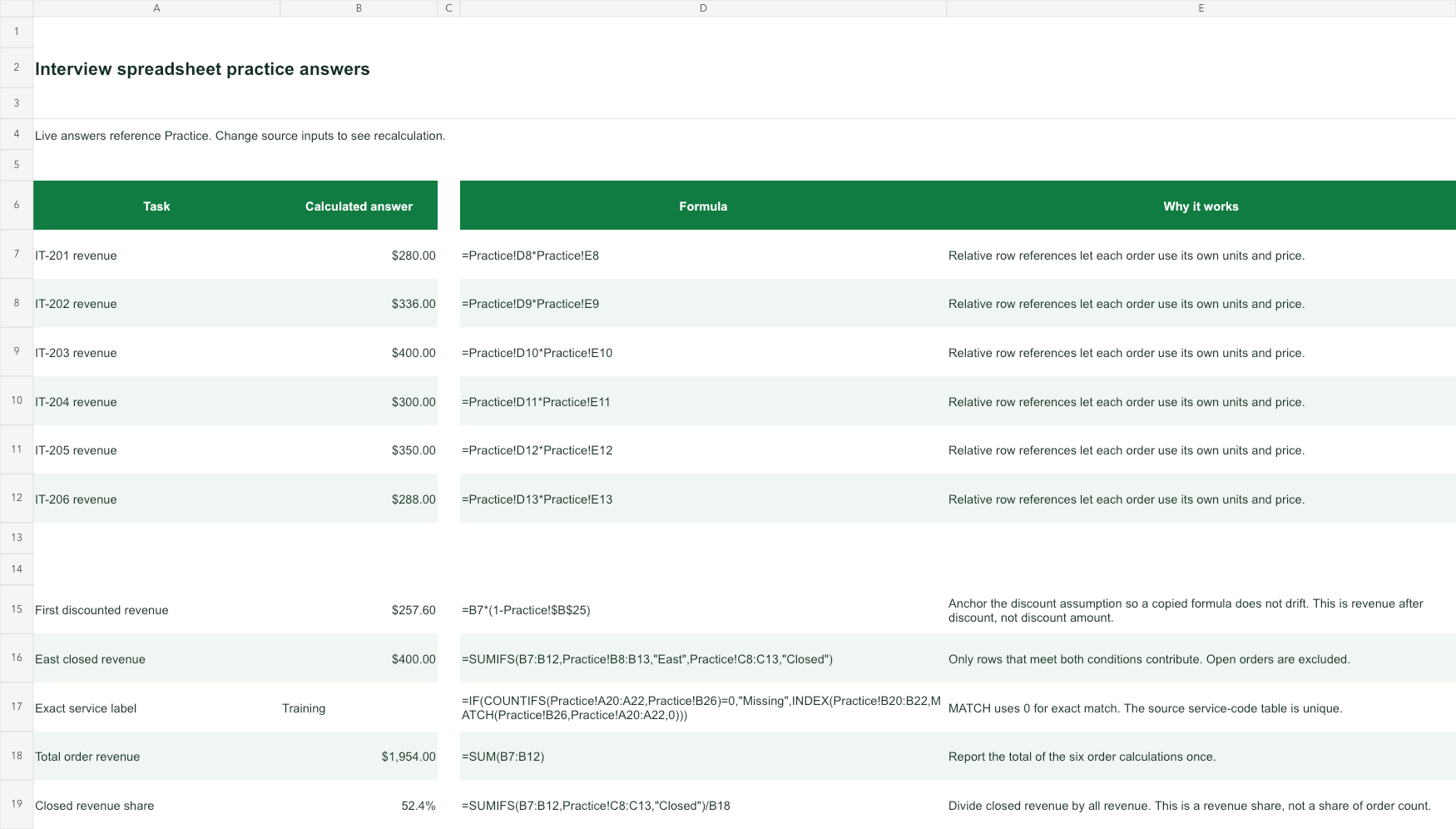
IT-201 revenue · F8
=D8*E8Result: 280
IT-202 revenue · F9
=D9*E9Result: 336
IT-203 revenue · F10
=D10*E10Result: 400
A mistake to catch
Accepting a returned value because it looks plausible, without checking that the key exists, that the key type matches and that the returned row is the intended row.
Correction. Grade in layers: key existence, key type, match mode, return column and returned row. Filter the source to the key and compare the whole row before you accept the answer.
Read the result
A returned value means the formula found something. It does not mean the match was the one the question asked for, so the row check is what turns a plausible answer into a correct one.
What should an Excel lookup practice test actually test?
A lookup test should test three things: whether the key matches, whether the right value comes back, and whether you can say why the formula is right. A test that only asks you to type a formula rewards pattern matching, not understanding.
Set up a source table with a unique key column, several return columns and a few distractor columns. Distractors matter because choosing the correct return column is half the skill. Include questions with an exact match, a missing key, a text key and a number key, and at least one where the lookup column is not the leftmost column.
Mark each answer in layers: does the key exist in the source, is the key the same data type, does the formula use the intended match mode, and is the returned row the correct row. If any layer fails, the answer is wrong even when the value looks plausible.
- Build a source table with one unique key column and several return columns.
- Add distractor columns so the return column has to be chosen deliberately.
- Write questions covering exact match, missing key, text key, number key and a non-leftmost lookup column.
- Mark each answer against the four layers before moving on.
Which lookup should you practice first: VLOOKUP, XLOOKUP or INDEX MATCH?
Start with VLOOKUP if the test or the job uses it. It forces you to think about lookup column position, table range and exact versus approximate match, and those habits carry over to every other lookup style. Work through the VLOOKUP lesson before you sit a timed set.
Move to XLOOKUP next. Practice separate lookup and return ranges, handling a missing key, and setting the match mode deliberately. Microsoft's XLOOKUP page documents the default match behavior, so read it once before you rely on the default.
Practice INDEX MATCH after that. It separates finding the row from returning the value, which is useful when the return column sits to the left of the key or moves. The INDEX MATCH lesson covers the pairing, and the separate INDEX and MATCH lessons are worth doing first if either function feels unfamiliar.
Do not treat this order as a rule for every workplace. If the test names a function, practice that function first. Use the same question on fresh data in each style so you compare the method rather than memorize the answer.
How do you build your own lookup practice spreadsheet with answers?
Use three sheets: source data, questions and an answer key. Keep the answer key on its own sheet so you cannot see it while you work. Make the key column unique, then add a sheet of test keys that includes present keys, missing keys, numbers stored as text and keys with stray spaces.
Mark by comparing your answer with the key using an exact check rather than by eye. A strict text comparison catches trailing spaces and text versus number mismatches that look identical on screen. If the returned value should be numeric, add a type check on the answer cell.
Lock the source range in your practice formulas before you fill down, and test what happens when the formula is copied across a column. A range that shifts is the most common reason a correct formula starts returning the wrong row. The references lesson covers relative, absolute and mixed references in the order you need them.
If you would rather not build the file, the downloadable workbooks follow this structure: source data, blank task cells and live answer keys. See the downloads page for what each workbook contains.
- Create source, questions and answer key sheets.
- Make the key column unique and add test keys with text numbers and stray spaces.
- Write the answer key with an exact comparison, not a visual match.
- Lock the source range and fill the formula down and across before you trust it.
What are the silent lookup mistakes that make a wrong answer look right?
VLOOKUP approximate match is the classic trap. If the match mode is omitted or set to approximate, a missing or unsorted key can return a nearby row instead of an error. Microsoft's VLOOKUP page explains the fourth argument, and it is worth reading before you sit a set where the match mode is not stated in the question.
Here is a concrete test. Put the codes P-10, P-20 and P-30 in A2:A4, names in B2:B4 and prices 5, 8 and 12 in C2:C4. =VLOOKUP("P-20",A2:C4,3,FALSE) returns 8, and so do =INDEX(C2:C4,MATCH("P-20",A2:A4,0)) and =XLOOKUP("P-20",A2:A4,C2:C4,"Not found"). For the missing code P-25, =XLOOKUP("P-25",A2:A4,C2:C4,"Not found") returns Not found, and =VLOOKUP("P-25",A2:C4,3,FALSE) returns an #N/A error. That error is the correct, honest answer. Change the last argument to TRUE and Excel may hand back the price for P-20 instead, which looks plausible and is wrong.
A relative table array shifts when the formula is filled down or across, so the lookup range no longer covers the source table. Lock the range and re-test. A wrong column index is a close relative: the index counts from the start of the table array, not from the start of the sheet, so adding a column to the source breaks every answer.
Text and number keys can look identical and still fail to match. Check with ISNUMBER or ISTEXT, convert where needed, and clean stray spaces before you change the formula. Duplicate keys are the quietest problem of all: a lookup returns the match it finds, which may not be the row you intended. Check uniqueness with COUNTIF before you trust any answer.
INDEX MATCH has its own match type trap. An omitted or wrong match type can produce an approximate match, so set it deliberately and read Microsoft's guidance on looking up values with VLOOKUP, INDEX or MATCH if you are unsure which type your question needs.
How do you grade a lookup test without fooling yourself?
Mark in layers. First, does the key exist in the source? Second, is the key the same data type in both places? Third, is the match mode exact? Fourth, is the return column the one the question asked for? Fifth, is the returned row the correct row? An answer that passes all five is right for the right reason.
Check the source table by filtering to the test key and comparing the whole row, not just the returned cell. Use COUNTIF to test whether a key is unique, ISNUMBER or ISTEXT to test type, and a strict text comparison for case-sensitive checks. Use IFERROR only to display a clean missing-key message, never to hide a wrong match.
Cross-check one lookup style with another on the same key, but only after the key and type checks pass. Comparing two formulas that share the same broken assumption proves nothing.
Keep a mistake log by cause: match mode, range locking, key type, stray spaces, duplicate key, wrong return column. The log is what turns a set of answers into a plan for the next set.
- Check key existence, then key type, then match mode, then return column, then returned row.
- Filter the source to the key and compare the whole row.
- Run COUNTIF for uniqueness and ISNUMBER or ISTEXT for type.
- Record the cause of every miss in a mistake log.
How do you practice lookups under test conditions?
Use a blank workbook or a browser practice page, a question sheet and a separate answer sheet. Do not look at the answer key until the set is finished. Keep the set short enough to grade immediately, then redo only the question types you missed on different data.
Repeat the same skill later on fresh data so the answer cannot be memorized. A lookup that works on tidy data and fails on messy data has not been practiced yet.
Excel Practice is one option. It runs in the browser, so Excel does not need to be installed. You write the formula in the cell and see what to fix.
What lookup test questions should you be able to answer?
Find a price or description from a product code where the return column is not next to the key. Find a department or manager from an employee ID where the ID is stored as text in one table and as a number in another. Return a clear not-found message when the key is missing, without hiding real errors.
Do a row and column lookup by matching a row key and a column key, using INDEX with MATCH or XLOOKUP with a nested match. Look up a band or threshold value, such as a commission rate or tax band, and explain why the lookup table must be sorted for an approximate match. Return multiple columns or multiple matching rows where the function supports it, and explain what happens when keys are duplicated.
If you are practicing for an interview, the interview question guide covers the style of question you will meet, but keep your lookup practice separate and graded so you know which answers were actually right.
Practice the skills in order
- VLOOKUP VLOOKUP appears in many established office workbooks.Preview this task
- XLOOKUP Retrieve the right value from a list instead of copying it by hand.Preview this task
- INDEX with MATCH VLOOKUP breaks when someone inserts a column. INDEX with MATCH does not, because it counts positions rather than trusting a fixed column number.Preview this task
This guide covers practice method and grading for VLOOKUP, XLOOKUP and INDEX MATCH. It does not cover every lookup edge case, every Excel version, or dynamic array behavior beyond the basics, and it does not promise a pass grade or a job outcome.
Practice lookupsContinue in a downloadable workbook
Interview spreadsheet practice
Practice a mixed original work sample covering references, conditional totals, exact lookup and a short report.
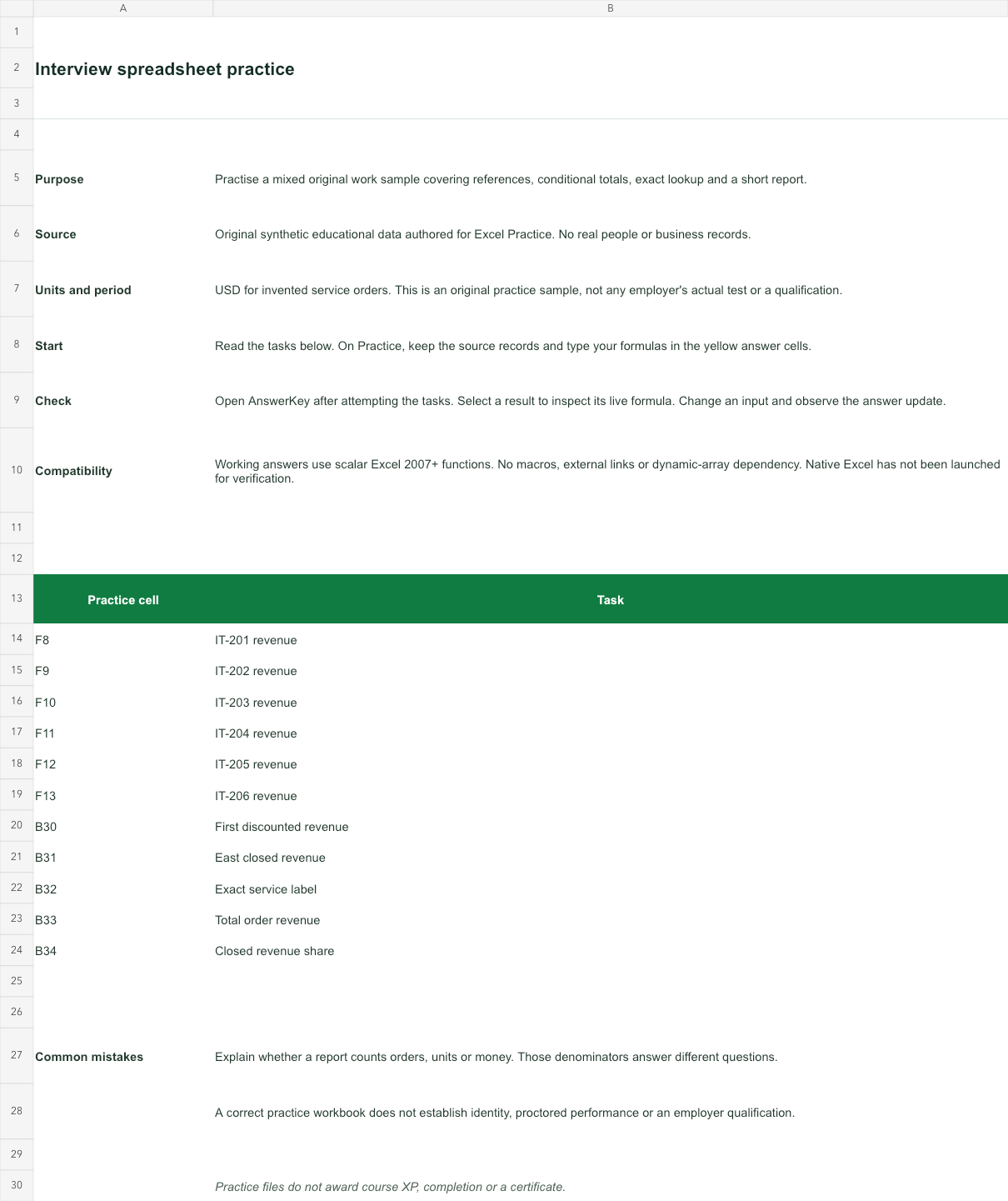
USD for invented service orders. This is an original practice sample, not any employer's actual test or a qualification.
Bank version 2026-11-02. Includes Instructions, Practice, AnswerKey; 11 live answer formulas. All source records are invented for education.
The download is an additional practice task. Its Instructions sheet identifies the source coordinates; this page’s illustrative example may use different records.
- Working answers use scalar Excel 2007+ functions. No macros, external links or dynamic-array dependency. Native Excel has not been launched for verification.
Further reading
- VLOOKUP function Microsoft Support
- XLOOKUP function Microsoft Support
- Look up values with VLOOKUP, INDEX or MATCH Microsoft Support