Reporting
Why an Excel PivotTable shows Count instead of Sum
The PivotTable heading Count of Amount tells you how many cells contain an amount entry. Change the calculation to Sum when you need invoice value. Check the source column for text amounts or blanks. This example gives $2,500 of recorded amounts across six invoice records.
On this page
Enter six invoice records
Start with the headers in A1:C1. Put the six records in A2:C7, leaving C7 truly blank. The zero on INV-303 shows that the amount is recorded as zero. The blank on INV-306 means nobody has entered an amount yet. Those rows answer different questions, even though neither increases the total.
| Team | Invoice | Amount |
|---|---|---|
| Sales | INV-301 | 1250 |
| Sales | INV-302 | 750 |
| Sales | INV-303 | 0 |
| Service | INV-304 | 300 |
| Service | INV-305 | 200 |
| Service | INV-306 |
See the worksheet diagram
Choose Sum for the amount column
Select A1:C7 and insert a PivotTable on a new worksheet. In the field list, drag Team to Rows and Amount to Values. Read the value heading before trusting the table. Excel normally uses Sum for a numeric field and can pick Count when the source includes text or blanks.
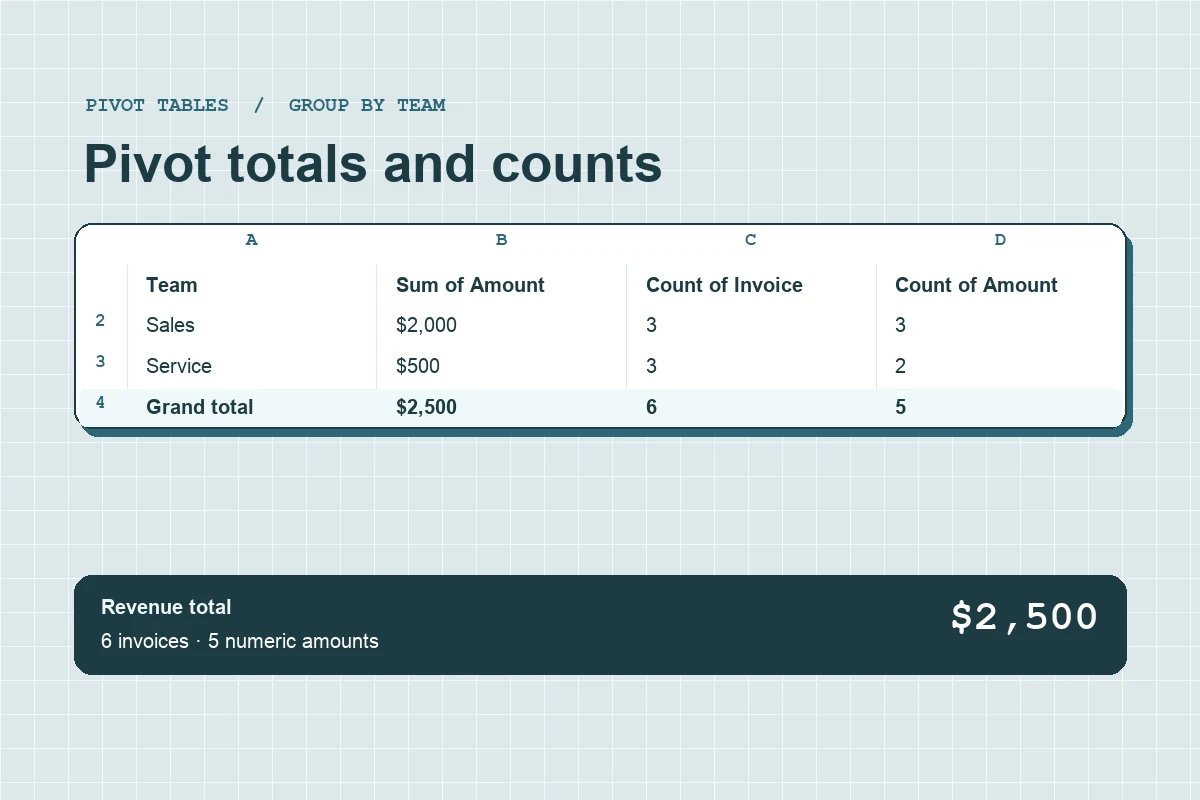
Open Value Field Settings for Amount in the Values area and choose Sum. In versions that expose the same setting from a value cell, you can right-click the number and use Summarize Values By. With the example data, Sales totals $2,000, Service totals $500 and the grand total is $2,500.
If the total still looks wrong, check the data type in the original sheet. Try =ISNUMBER(C3) on the cell that should hold 750. A result of FALSE tells you Excel sees another type. For an amount stored as text, use Convert to Number if Excel offers it, or clean the exported column before importing it again. Refresh the PivotTable after changing the source.
Count invoice records separately
Drag Invoice into Values and set it to Count. Invoice IDs are present on all six rows, so the counts are three for Sales and three for Service. Counting Amount would answer a different question. Sales has three recorded amounts including zero. Service has two because the final amount is blank.
| Team | Sum of Amount | Count of Invoice | Count of Amount |
|---|---|---|---|
| Sales | $2,000 | 3 | 3 |
| Service | $500 | 3 | 2 |
| Grand total | $2,500 | 6 | 5 |
Count in this PivotTable means the number of nonblank entries in the chosen field. If an invoice can occupy several line-item rows, Count of Invoice counts those rows even when their IDs repeat. Use a source with one record per invoice if that is the quantity you need.
Check the output against the source
For this sheet, =SUM(C2:C7) gives 2500, and =COUNTA(B2:B7) gives 6. If your PivotTable totals differ, check its source range and filters, then refresh it. Leave a missing amount blank while it is being investigated. Enter zero only when zero is the amount the record should carry.
In the Pivot tables lesson, build a summary with a row field and choose the right aggregation for the job. Pay attention to the value field you count as well as the way you group the rows.
Try it on another worksheet
Practice Pivot tablesRead the lesson guideBuild a team training plan for weekly reporting