Lookups
Compare two inventory lists in Excel with XLOOKUP
Your stock report says there are 12 units of A101, and the warehouse counted 10. The exports also have different row orders. Match on the SKU with XLOOKUP, then calculate the variance. A missing count needs its own label because a count of zero is meaningful.

On this page
Put both inventory exports on the worksheet
Put the expected inventory in A1:B5 and the physical count in D1:E5. Leave column C empty so the exports are easy to distinguish. Each example has one row per SKU. Treat SKU columns as text if your real identifiers can start with a zero.
| System SKU | Expected units |
|---|---|
| A101 | 12 |
| B205 | 7 |
| C310 | 4 |
| Z900 | 0 |
| Count SKU | Counted units |
|---|---|
| C310 | 4 |
| A101 | 10 |
| X777 | 5 |
| Z900 | 0 |
C310 is first in the count export and third in the system export. Subtracting amounts on the same row would compare different products. Sorting is unnecessary when the lookup uses the item code. Keep the input order if you need to trace each result back to its export.
See the worksheet diagram
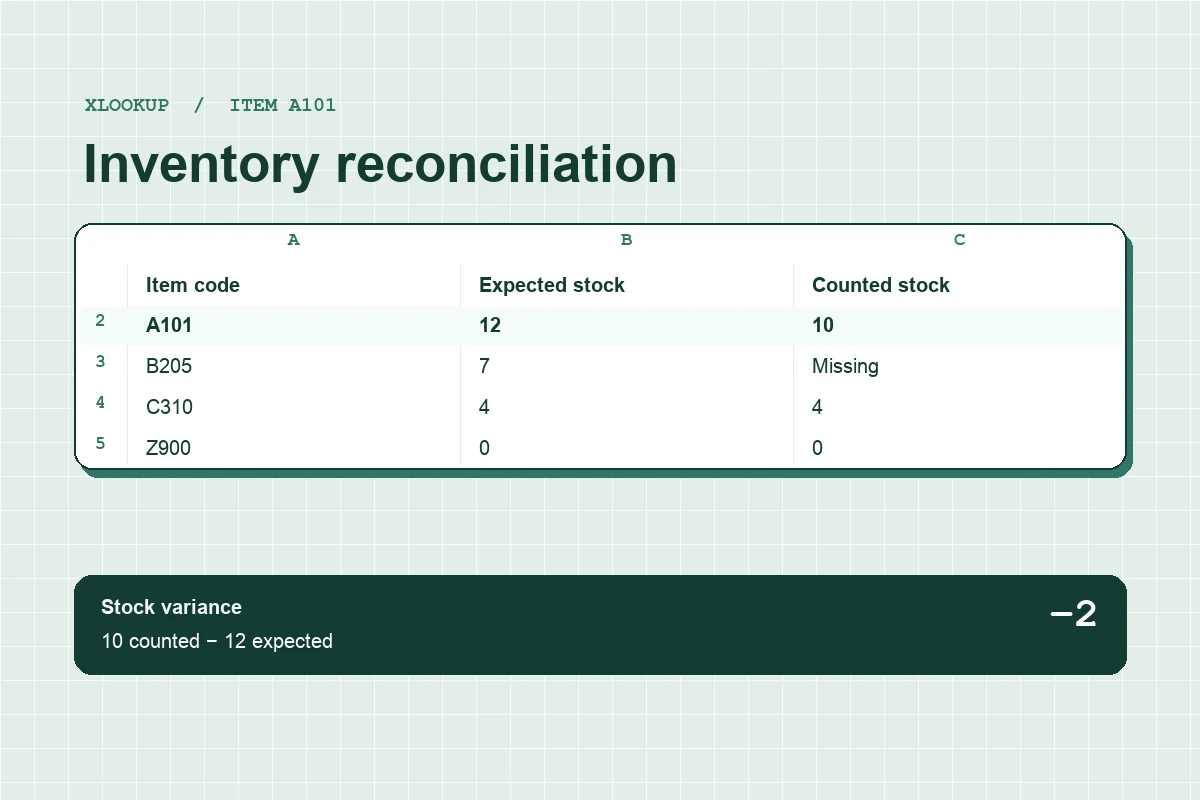
Inventory lookup
Choose an item code to compare expected and counted stock.
A101 has 10 counted and 12 expected. The difference is -2.
| Item | Expected | Counted | Difference |
|---|---|---|---|
| A101 | 12 | 10 | -2 |
See the Excel formula
Enter in F2 on this worksheet.
=XLOOKUP("A101",$D$2:$D$5,$E$2:$E$5,"Not counted",0) Find the physical count for each SKU
Label F1 Counted units. In F2, search for the system SKU in A2 and return the count from the matching row. Fill the formula down to F5.
=XLOOKUP(A2,$D$2:$D$5,$E$2:$E$5,"Not counted",0)The final 0 makes exact matching explicit. The two dollar-marked ranges stay fixed while A2 changes to A3 and so on. A101 returns 10, B205 returns Not counted, C310 returns 4 and Z900 returns the number 0. Try A101, B205 and Z900 in the interactive example to see those three distinct outcomes.
Show the shortage and the missing count separately
Label G1 Variance. Enter the following in G2 and fill down again. This uses counted minus expected, so a negative value means a shortage. State the sign convention in your report so the reader knows which way to interpret the result.
=IF(ISNUMBER(F2),F2-B2,"Review")| SKU | Counted units | Variance |
|---|---|---|
| A101 | 10 | -2 |
| B205 | Not counted | Review |
| C310 | 4 | 0 |
| Z900 | 0 | 0 |
A lookup from the system list can only report on SKUs that appear in that list. Check the other direction too. In H2, look for the counted SKU in the system export. Fill down to identify X777 as an unexpected item.
=XLOOKUP(D2,$A$2:$A$5,$B$2:$B$5,"Not in system",0)Resolve duplicate codes before you trust the numbers
If the count export has one line per bin, a SKU may appear more than once. XLOOKUP normally returns the first exact match. To get the quantity across all bins, total the bin rows separately. Check a code with =COUNTIF($D$2:$D$5,A2). A result greater than 1 means you need to resolve duplicate entries or total the bin rows by SKU first.
Confirm each matched row contains a numeric quantity. A blank count needs its own review before reconciliation. XLOOKUP is available in newer Excel versions including Microsoft 365 and Excel 2021. If a colleague uses Excel 2016 or 2019, choose a compatible lookup instead. The XLOOKUP lesson practices choosing the lookup and return ranges on a different job.
Try it on another worksheet
Practice XLOOKUPRead the lesson guideUse exact lookups in a new-hire practice plan