
Before you read the answers
- Work out each budget variance, the number an IF label will read.
- Find the row that sits exactly on a boundary.
- Write the expected label for each row by hand before you build the IF.
All examples use original synthetic data. Source row numbers and column letters are shown so you can reproduce the formulas.
The variance column an IF label reads
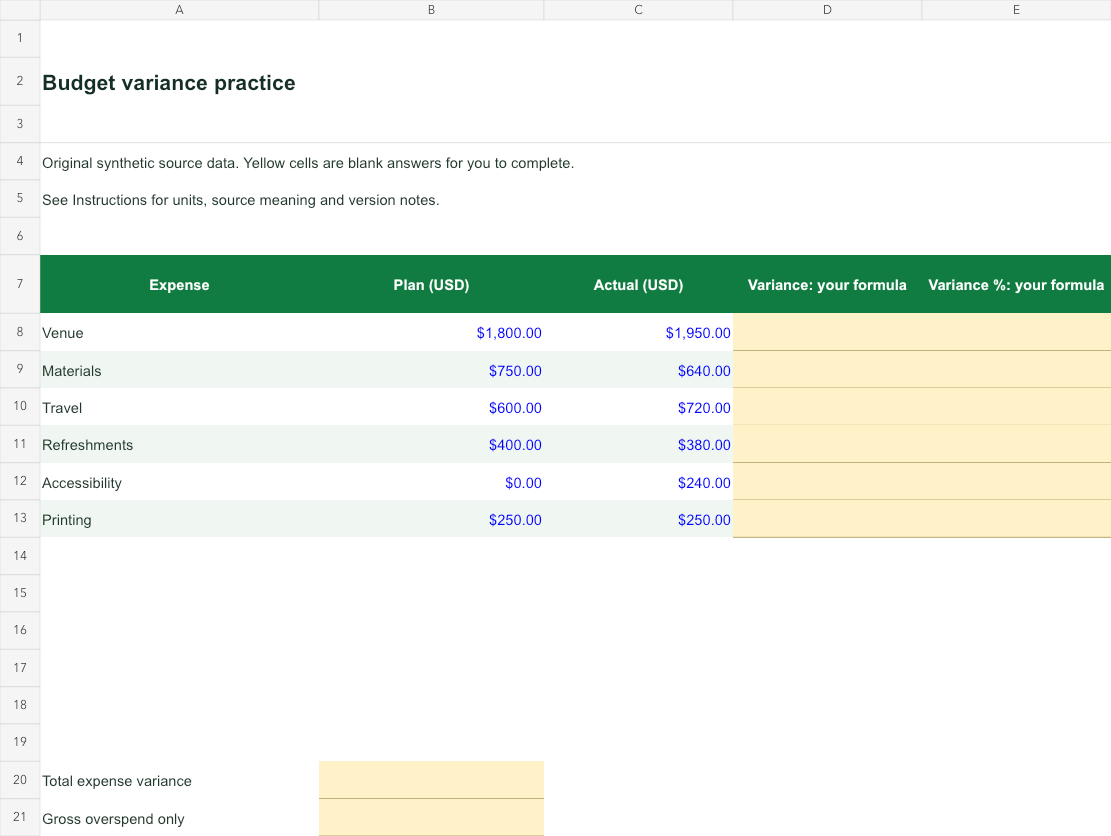
Work out actual minus plan for each line. An IF band formula reads this column, so it has to be right before you label anything. Printing has a variance of exactly 0, which is the boundary row to test.
USD for a fictional November 2026 workshop. Variance = actual minus plan; positive means expense over budget.
| Row | A · Expense | B · Plan (USD) | C · Actual (USD) | D · Variance: your formula | E · Variance %: your formula |
|---|---|---|---|---|---|
| 8 | Venue | 1800 | 1950 | Blank task cell | Blank task cell |
| 9 | Materials | 750 | 640 | Blank task cell | Blank task cell |
| 10 | Travel | 600 | 720 | Blank task cell | Blank task cell |
| 11 | Refreshments | 400 | 380 | Blank task cell | Blank task cell |
| 12 | Accessibility | 0 | 240 | Blank task cell | Blank task cell |
| 13 | Printing | 250 | 250 | Blank task cell | Blank task cell |
Worked solution and complete results
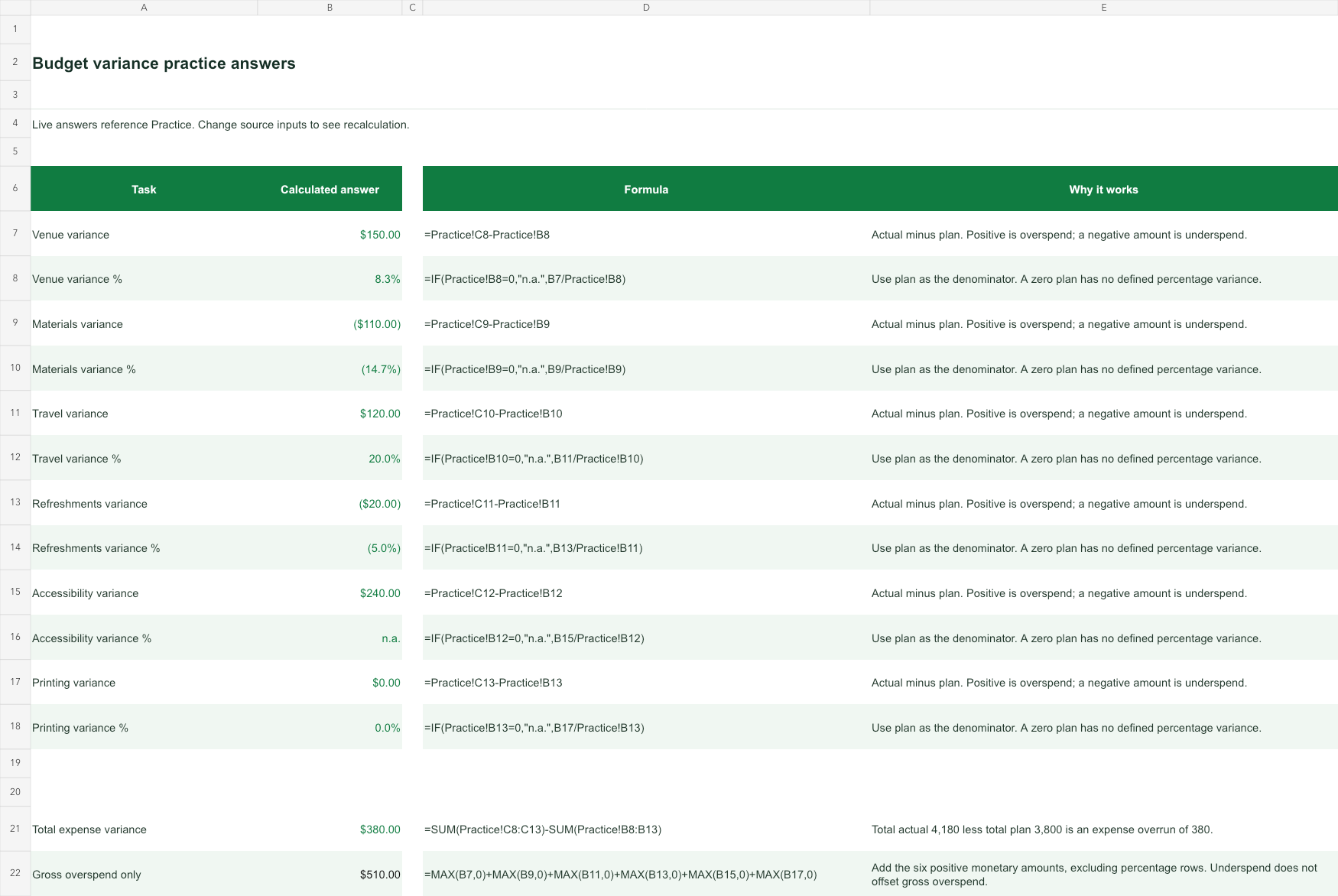
Venue variance · D8
=C8-B8Result: 150
Materials variance · D9
=C9-B9Result: -110
Travel variance · D10
=C10-B10Result: 120
Printing variance · D13
=C13-B13Result: 0
A mistake to catch
Writing the threshold in quotes, or locking the wrong part of the reference, so the label column looks plausible but the boundary row lands in the wrong band.
Correction. Keep the threshold in its own cell, reference it without quotes, lock it with an absolute reference and test the row exactly on the threshold before filling down.
Read the result
A correct label column lets a reader scan for the lines that need attention. If the boundary row is mislabeled, the summary above it is wrong even though every number looks fine.
What order should you practice IF, nested IF and IFS in?
Start with a single IF that returns text, because a label is easy to read and a wrong one is obvious. Take a column of values and a threshold in its own cell, then return one word above the threshold and another below. When that column reads correctly on every row, move to an IF that returns a number, such as a rate or an adjusted amount, and check a sample by hand before filling it down.
Nested IF comes next, and only once a single IF is reliable. Build the first condition with a placeholder in the false branch, confirm the true branch fires on the rows you expect, then replace the placeholder with the next IF. Adding one branch at a time means a mistake is always in the branch you just wrote.
Introduce IFS when you have three or more mutually exclusive bands. It removes the deep parenthesis stack and makes the order of conditions visible at a glance. Run IFS and nested IF side by side on the same data and confirm they agree before you pick one for a real worksheet. The IF lesson and the IFS lesson follow this order, and so does any workbook you build yourself.
- Single IF returning text, checked row by row.
- Single IF returning a number, checked on a sample by hand.
- Nested IF built one branch at a time.
- IFS on the same data, compared with the nested version.
How do you write a simple IF and check it by hand?
An IF has three parts: the logical test, the value if true and the value if false. Write each part on its own line in a scratch cell before combining them. Put the logical test alone in a cell first, such as a cell compared to a threshold, and confirm it returns TRUE or FALSE where you expect. Only then wrap it in IF.
Checking by hand means picking one row, working out the expected answer on paper from the source values, and comparing it with the cell. Do this for a row that should be true and a row that should be false. If either is wrong, test the condition separately again: the problem is usually the test, not the return values.
In the sample table above the variance values sit in D8:D13. For Printing, D13 is exactly 0, so =IF(D13>0,"Over budget","Within budget") returns Within budget. Change the test to D13>=0 and the same row would read differently, which is why the boundary row is the one to check.
When a result looks right but you are unsure, change one input and predict what should happen before you look. If the output moves the way you said it would, the formula is doing what you think. If it does not, you have found the branch that is wrong. The threshold lesson is a good place to make this comparison habit automatic.
- Write the logical test in its own cell and confirm TRUE or FALSE.
- Write the true value and the false value as plain text first.
- Combine the three parts into one IF.
- Check one true row and one false row against a hand calculation.
What breaks an IF condition: text versus numbers, quotes and order
Text criteria need quote marks around them; a number criterion does not. Writing a number in quotes, or a word without them, is a common reason an IF takes the wrong branch or returns an error. Check the type of the cell you are comparing before you edit the formula.
Numbers stored as text will not compare correctly with a numeric threshold. They often sit left-aligned in the column. Confirm with ISNUMBER, as covered in the ISNUMBER lesson, before you blame the IF. A value that looks like a number but is text does not compare as a number, so a test can give a surprising result without any error message.
In a nested IF the order of conditions decides the answer, because the first TRUE wins and later conditions are never reached. Put the narrowest or highest band first. When you fill a formula down, relative references move: if a threshold or a lookup range should stay fixed, lock it with an absolute or mixed reference and compare the filled column with the original row. The references lesson and mixed references lesson cover the locking patterns.
Nested IF practice: build one branch at a time
Write the first IF with a placeholder in the false branch, such as the word pending. Confirm the true branch fires on the rows you expect. Then replace the placeholder with the next IF and test again. Repeat until every band is covered. A nested IF that fails after three branches is almost always a parenthesis in the wrong place rather than a wrong condition.
Test the boundary values: the row exactly on a threshold, one just below and one just above. That is where condition order shows up. If the row on the threshold lands in the lower band when you expected the upper one, the comparison operator is the thing to change, not the order of the branches.
Compare the finished nested IF with an IFS on the same data. IFS reads left to right and stops at the first true condition, so the order rule is the same but the formula is flatter. If the nested version becomes hard to read, treat that as a signal to check the order rather than to add more parentheses. The IF bands lesson and the SWITCH lesson give you two more ways to express the same bands.
- Write the first IF with a placeholder false branch.
- Confirm the true branch on the rows you expect.
- Replace the placeholder with the next IF and retest.
- Check the row on each threshold, one below and one above.
How to test an IF formula before you trust it
Pick three rows: one that should be true, one that should be false and one on the boundary. Work out each expected answer by hand from the source values. If all three match, fill the formula down and spot-check the last row, because a relative reference that moved is easiest to see at the bottom of the column.
Put the logical test in its own cell first and confirm it returns TRUE or FALSE as expected. This separates a broken condition from a broken return value. If the test is right and the IF is wrong, the problem is in the true or false value, often a quote grade or a stray space.
Cell-level feedback helps because it shows you what to fix. Keep the hand-check habit alongside it so you can work without any tool. The IFERROR lesson is worth reading once you know which error you expect, but do not wrap a formula in IFERROR to hide a mistake you have not found.
- Choose a true row, a false row and a boundary row.
- Write the expected answer for each by hand.
- Compare the cell with your expected answer.
- Fill down and check the last row for a moved reference.
IF with multiple conditions: AND, OR and the parenthesis trap
Use AND inside the logical test when every condition must be true, and OR when any one is enough. Keep each condition in its own pair of parentheses so the grouping is explicit. Test the combined condition on its own cell before wrapping it in IF, exactly as you would a single comparison.
For a contains check, combine ISNUMBER with SEARCH rather than comparing with an equals sign, because equals matches the whole cell. The logical functions lesson and the SEARCH lesson cover the two halves of that pattern. Check a row where only one of the conditions is true to confirm the AND or OR is doing what you intended.
The parenthesis trap is putting the AND or OR outside the IF, or leaving one condition ungrouped so it binds to the wrong neighbour. If a combined condition returns the wrong result, split it back into separate cells, confirm each one, then recombine. The COUNTIF and COUNTIFS practice guide uses the same criteria-building habit on a different family of functions.
Where to get graded IF practice with answers
Any practice source works if it gives you a task, a way to check it and fresh data on a second attempt. The downloadable workbooks on the downloads page include source data, blank task cells and live answer keys, so you can attempt the task and then compare your formula with the key. That comparison is more useful than seeing the answer first.
Excel Practice is one option. It runs in the browser, so Excel does not need to be installed. It is a Kinori Labs course, not a Microsoft certification.
Whichever source you use, keep the order and the hand-check habit from this guide. Learning the method is what lets you write an IF on a sheet nobody has prepared for you.
Practice the skills in order
- IF Consistent rules make status reports easier to understand and maintain.Preview this task
- IFS Nested IFs become unreadable after the second level. IFS reads top to bottom, which is how the rule is written in English.Preview this task
- AND, OR, NOT Real rules usually involve more than one test. These three let one IF ask several questions.Preview this task
This guide covers the order to practice IF, nested IF and IFS, the condition mistakes to catch and how to check a result by hand. It does not cover array formulas, dynamic array behavior, or the full syntax reference for every logical function.
Start the IF lessonContinue in a downloadable workbook
Budget variance practice
Explain signed expense variance, overspend and percentage variance without hiding a zero budget.
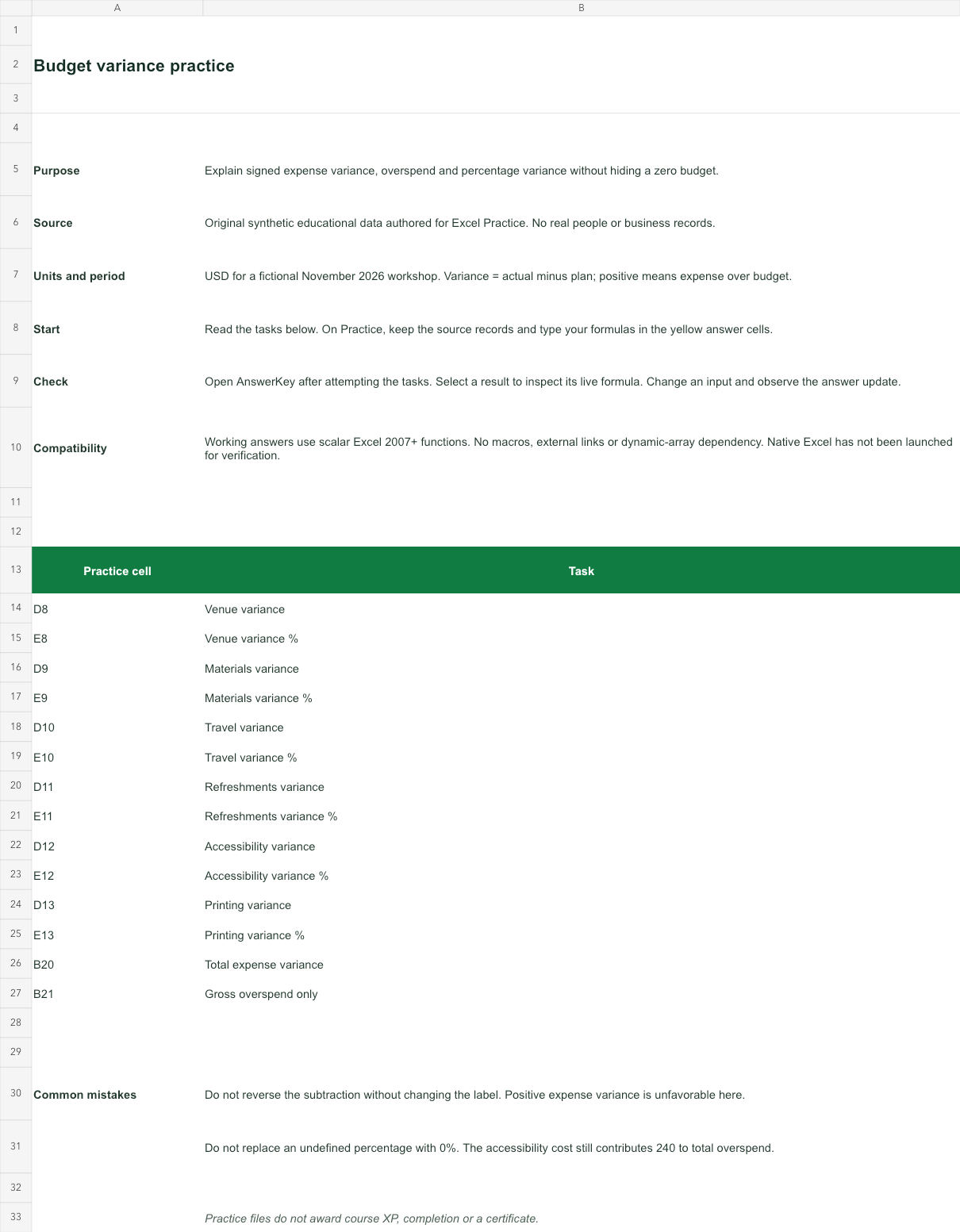
USD for a fictional November 2026 workshop. Variance = actual minus plan; positive means expense over budget.
Bank version 2026-11-02. Includes Instructions, Practice, AnswerKey; 14 live answer formulas. All source records are invented for education.
The download is an additional practice task. Its Instructions sheet identifies the source coordinates; this page’s illustrative example may use different records.
- Working answers use scalar Excel 2007+ functions. No macros, external links or dynamic-array dependency. Native Excel has not been launched for verification.
Further reading
- Overview of formulas in Excel Microsoft Support
- Excel functions by category Microsoft Support