
Before you read the answers
- Work out each budget variance, the number the ladder reads.
- Decide which band owns a variance of exactly zero.
- Write the expected band for each row, then compare.
All examples use original synthetic data. Source row numbers and column letters are shown so you can reproduce the formulas.
The variance column a ladder reads
Work out actual minus plan for each line. Printing has a variance of exactly 0, which is the boundary row a nested IF has to place on purpose.
USD for a fictional November 2026 workshop. Variance = actual minus plan; positive means expense over budget.
| Row | A · Expense | B · Plan (USD) | C · Actual (USD) | D · Variance: your formula | E · Variance %: your formula |
|---|---|---|---|---|---|
| 8 | Venue | 1800 | 1950 | Blank task cell | Blank task cell |
| 9 | Materials | 750 | 640 | Blank task cell | Blank task cell |
| 10 | Travel | 600 | 720 | Blank task cell | Blank task cell |
| 11 | Refreshments | 400 | 380 | Blank task cell | Blank task cell |
| 12 | Accessibility | 0 | 240 | Blank task cell | Blank task cell |
| 13 | Printing | 250 | 250 | Blank task cell | Blank task cell |
Worked solution and complete results
Venue variance · D8
=C8-B8Result: 150
Materials variance · D9
=C9-B9Result: -110
Travel variance · D10
=C10-B10Result: 120
Printing variance · D13
=C13-B13Result: 0
A mistake to catch
Writing the band tests in the order they came to mind, so a broad test sits above a narrow one and the exact cut-off falls into the wrong band.
Correction. List the bands and cut-offs first, pick one direction, decide which band owns each exact cut-off, then type the tests in that order and check each boundary with a three-row truth table.
Read the result
A band tells you how far a line has moved from its budget, not whether that movement is acceptable. Read the band alongside the percentage column before deciding which lines need attention.
What is a nested IF doing while it runs?
An IF checks its test and returns one value when the test is true and another when it is false. Nesting means the false value is itself another IF, so the formula reads as a ladder rather than a set of independent rules. Microsoft's overview of formulas in Excel is worth reading once if the structure still feels unfamiliar.
The practical consequence is that the order is part of the answer. A row is tested from the top, and the first test that comes back true decides the result. Everything below that point is never reached for that row, so a broad test placed too high will swallow rows a narrower test was meant to catch.
The final false value is the catch-all. If you leave it out, rows that fail every test show a bare FALSE in the cell instead of a band. That is not a broken formula, it is a ladder with no bottom rung, and it is the first thing to look for when a column of results has a few odd entries in it.
- Read the formula as a ladder, top to bottom, not as a list of rules.
- Ask which test is the first one that can be true for a given row.
- Check that a final false value exists and that you chose it deliberately.
Decide the order of the tests before you type the formula
Write the bands out as a list first, on paper or in a spare column beside the data. Choose one direction, either lowest to highest or highest to lowest, and keep that direction for the whole formula. Mixed directions are the usual reason a band can never be reached: a test placed below a broader one is dead for every value.
Then decide which band owns each exact cut-off value. If a value of exactly the cut-off belongs to the upper band, your test needs the greater-than-or-equal form; if it belongs to the lower band, the plain greater-than form is right. Make that decision once, in writing, and let the operator follow from it rather than choosing by habit.
Only then translate the list into the formula, in the same order you wrote it. The IF bands lesson takes this further with worked banding examples, and the threshold lesson is a good warm-up if comparisons still feel shaky.
- List the bands and their cut-off values in one column.
- Pick a single direction and stick to it.
- Write which band owns each exact cut-off value.
- Choose the operator that matches that decision.
- Type the formula in the same order as your list.
Check every branch with a small truth table
Build one test row per boundary: a value just below the cut-off, the cut-off itself, and a value just above it. Three rows per boundary is enough to expose an operator that is one step out, and it is far quicker than hunting through a full dataset for the row that looks wrong.
Before you look at the formula result, write the band you expect by hand in the next column. Then compare the two columns. A mismatch is almost always an ordering or operator problem, not a typo, so fix the ladder rather than patching the result.
Here is one to run. In the sample table above the variance values sit in D8:D13. The ladder =IF(D8>0,"Over",IF(D8=0,"On budget","Under")) returns Over for Venue (150), Under for Materials (-110) and On budget for Printing (D13, exactly 0). Writing the same bands with =IFS(D13>0,"Over",D13=0,"On budget",TRUE,"Under") gives the same answer, which is a good agreement check.
The reachability check finishes the job. Walk the tests in order and ask, for each one, whether any value could reach it as the first true test. If the answer is no, that branch is dead and should be removed or moved. Keep the truth table beside the formula so the check is repeatable when a cut-off changes.
- Add a test row just below each cut-off, at the cut-off, and just above it.
- Type the expected band by hand in the next column.
- Compare expected with actual and note every mismatch.
- Walk the tests in order and grade any branch that can never fire.
The mistakes that make a nested IF look right and return the wrong band
Tests written out of order is the first. A broad test near the top catches rows a narrower test below it was written for, and the formula looks tidy while quietly returning the wrong band. The boundary operator is the second: greater-than where greater-than-or-equal was needed drops the exact cut-off into the band below.
Numbers stored as text are the third, and they are easy to miss because the comparison does not error, it just behaves differently. Check the column with ISNUMBER or convert it with VALUE before you blame the IF. The ISNUMBER lesson and the VALUE lesson both cover this in a few minutes.
The fourth is a missing or lazy catch-all: no final false value, or one that hides an unexpected case instead of surfacing it. The fifth is the same cut-off typed into several branches, so one edit leaves the ladder inconsistent. If you cannot tell which FALSE belongs to which IF, stop adding levels and flatten the logic instead.
Should you practice nested IF or IFS first?
IFS pairs each test with its own result, so there is no trailing chain of parentheses to miscount. That removes the parenthesis problem, not the logic problem: the tests are still read in order, so the ordering and boundary discipline you build with nested IF applies unchanged.
Practice nested IF first so you can see the fall-through for yourself, then rewrite the same exercise in IFS and compare the two versions line by line. If the bands disagree, the ladder was wrong in one of them, and finding out which is the exercise. The IFS lesson and the SWITCH lesson are the natural next steps.
Nested IF still earns its place when you are combining the result with another function, or when a file has to stay compatible with an older version. Avoid the argument about which is universally better. The check method matters more than the function you pick.
Exercise shapes that actually build the skill
Band a column of values into named groups, then re-solve the same bands on different data a few days later. Repeating the pattern on fresh rows is what stops you memorizing one answer. Tiered rates are the next shape: each tier has its own rule and the order of tests decides the result, which is exactly the skill being trained.
Then try flagging rows that meet two conditions at once. This shows you where AND belongs and where the ladder already handles the combination, and it is the point where many people over-nest. Finish by reading someone else's nested IF and grading each branch reachable or unreachable before you run it.
Check every attempt against your truth table rather than against the answer key alone. The key tells you the answer is wrong; the truth table tells you which test fired. If you want ready-made data, the downloadable workbooks on the downloads page include source data, blank task cells and answer keys, and the projects page shows how a guided project combines several functions on one sheet.
- Band one column, then repeat on different data.
- Move to tiered rates where order decides the result.
- Flag rows meeting two conditions to see where AND belongs.
- Mark branches reachable or unreachable in a formula you did not write.
Where to drill nested IF in the browser
Excel Practice teaches one function per lesson and combines several in a project, so the IF, IFS and banding lessons can be practiced in sequence. You write the formula in the cell and see what to fix. The same skill returns later on different data, which is the loop this guide describes.
If you would rather work offline, the downloadable workbooks let you run the same truth table routine on source data with blank task cells and answer keys.
If you would rather work offline, the downloadable workbooks let you run the same truth table routine without an account. Either way, the method is the same: fix the order, prove the boundaries, then trust the formula.
Practice the skills in order
- IF Consistent rules make status reports easier to understand and maintain.Preview this task
- IF with text A number tells you the value. A label tells the reader what it means, which is usually what they wanted.Preview this task
- IFS Nested IFs become unreadable after the second level. IFS reads top to bottom, which is how the rule is written in English.Preview this task
This guide covers the practice method for ordered tests, boundary checks and reading a formula you did not write. It does not re-teach IF, IFS or banding syntax in full, does not cover array formulas or dynamic arrays, and does not discuss nesting limits or version differences.
Practice nested IFContinue in a downloadable workbook
Budget variance practice
Explain signed expense variance, overspend and percentage variance without hiding a zero budget.
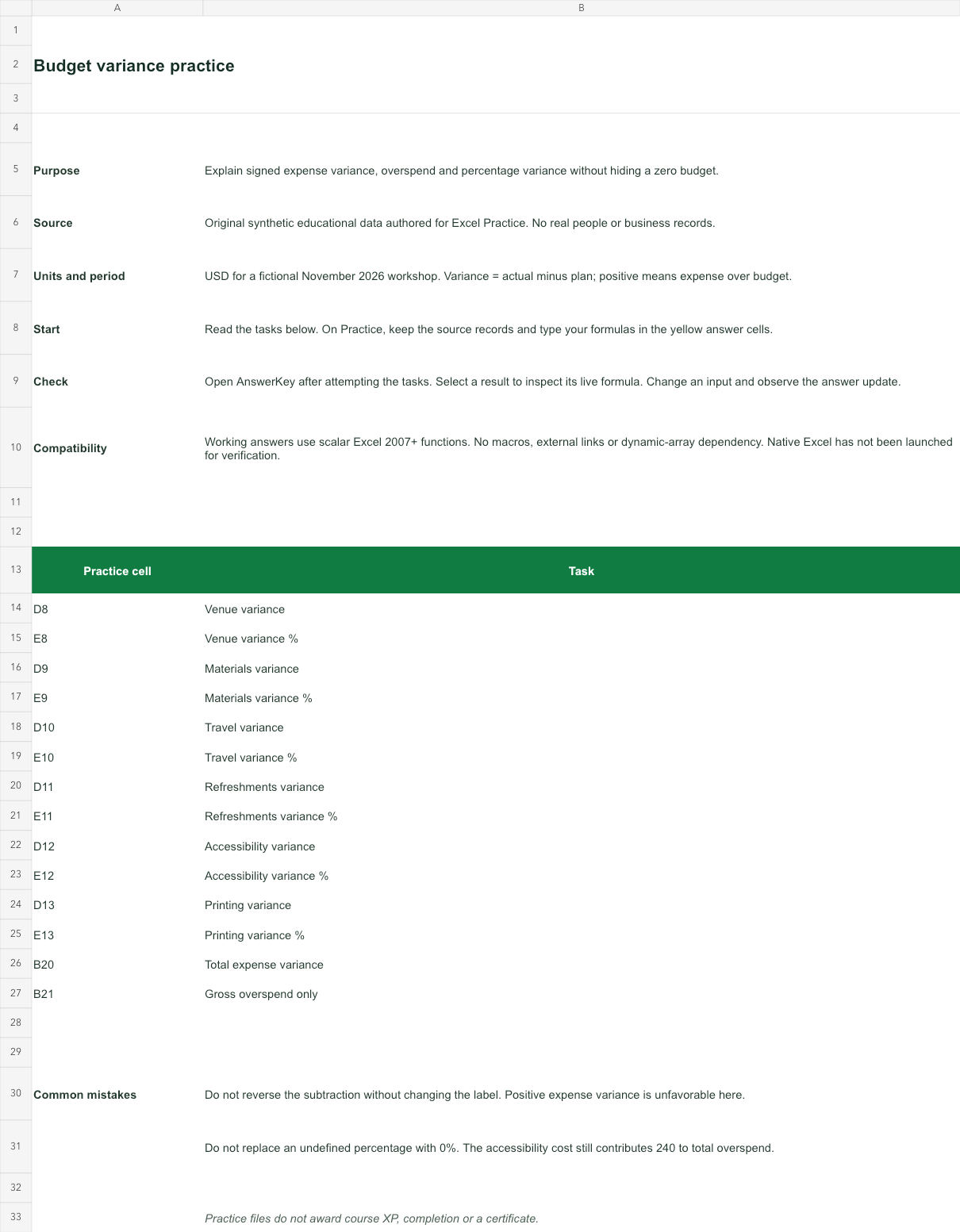
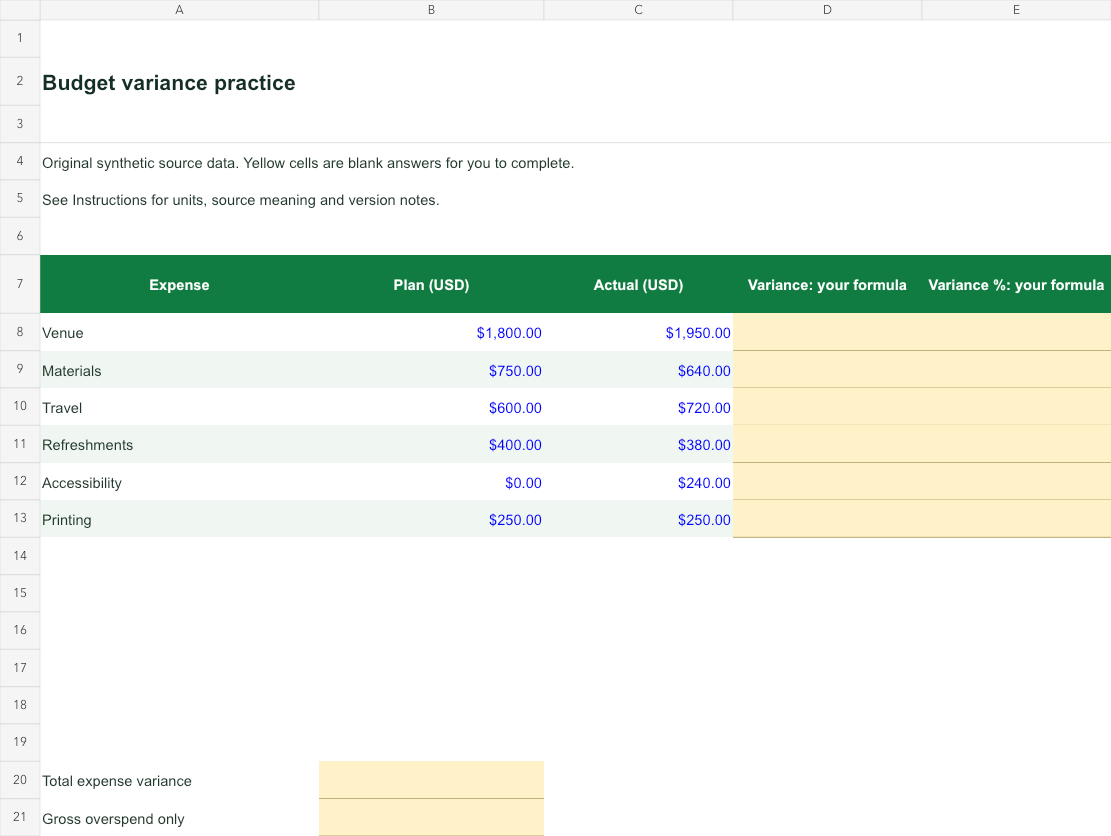
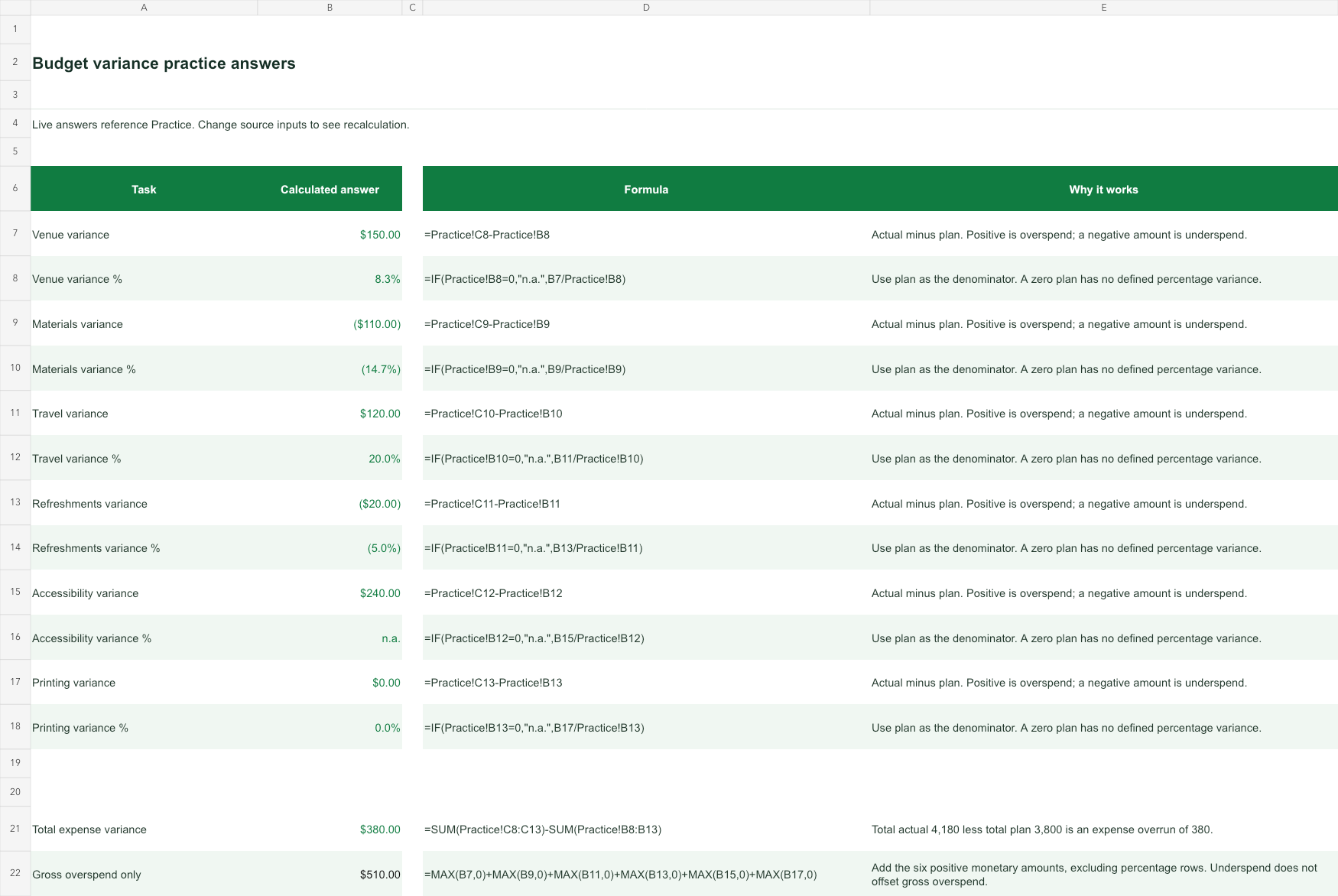
USD for a fictional November 2026 workshop. Variance = actual minus plan; positive means expense over budget.
Bank version 2026-11-02. Includes Instructions, Practice, AnswerKey; 14 live answer formulas. All source records are invented for education.
The download is an additional practice task. Its Instructions sheet identifies the source coordinates; this page’s illustrative example may use different records.
- Working answers use scalar Excel 2007+ functions. No macros, external links or dynamic-array dependency. Native Excel has not been launched for verification.
Further reading
- Overview of formulas in Excel Microsoft Support