
Before you read the answers
- Try the five exercises below before you read each answer.
- Work out the variance for each budget line in the worked example.
- Check one row by hand before you trust a total.
All examples use original synthetic data. Source row numbers and column letters are shown so you can reproduce the formulas.
Checking a variance formula before trusting the total
Work out actual minus plan for each budget line, then check one result by hand before you add anything up.
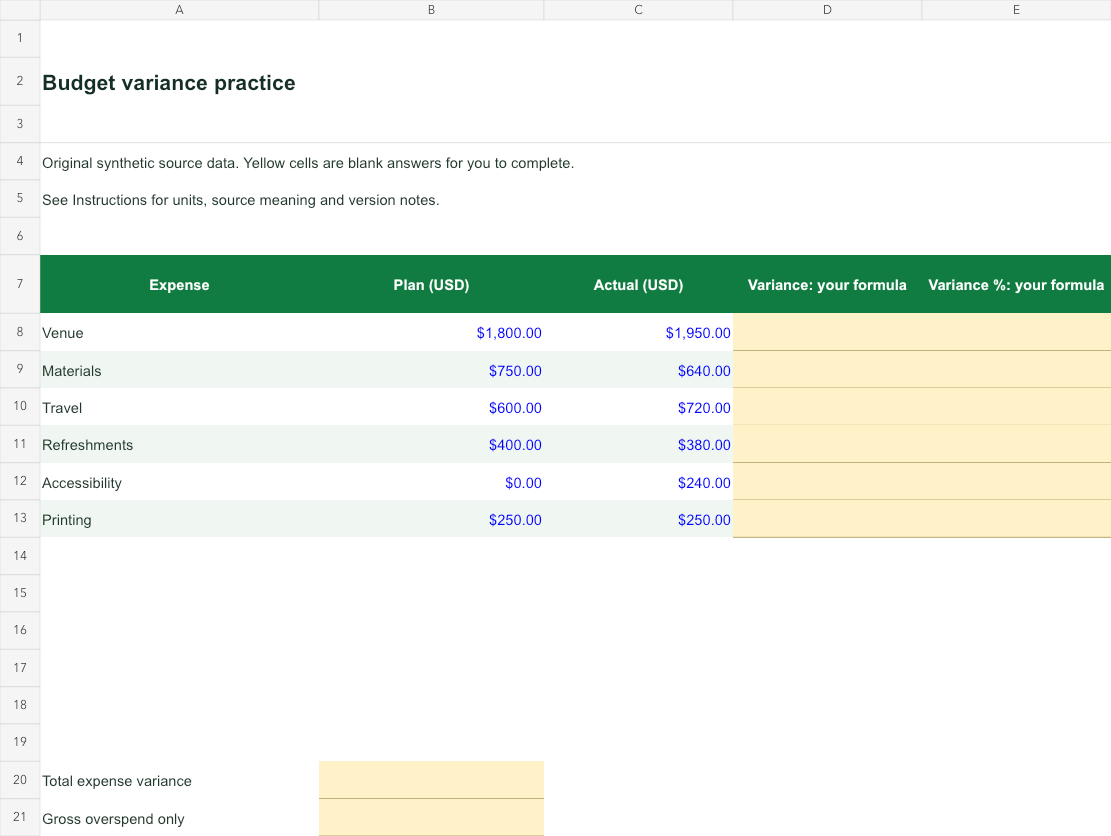
USD for a fictional November 2026 workshop. Variance = actual minus plan; positive means expense over budget.
| Row | A · Expense | B · Plan (USD) | C · Actual (USD) | D · Variance: your formula | E · Variance %: your formula |
|---|---|---|---|---|---|
| 8 | Venue | 1800 | 1950 | Blank task cell | Blank task cell |
| 9 | Materials | 750 | 640 | Blank task cell | Blank task cell |
| 10 | Travel | 600 | 720 | Blank task cell | Blank task cell |
| 11 | Refreshments | 400 | 380 | Blank task cell | Blank task cell |
| 12 | Accessibility | 0 | 240 | Blank task cell | Blank task cell |
| 13 | Printing | 250 | 250 | Blank task cell | Blank task cell |
Worked solution and complete results
Venue variance · D8
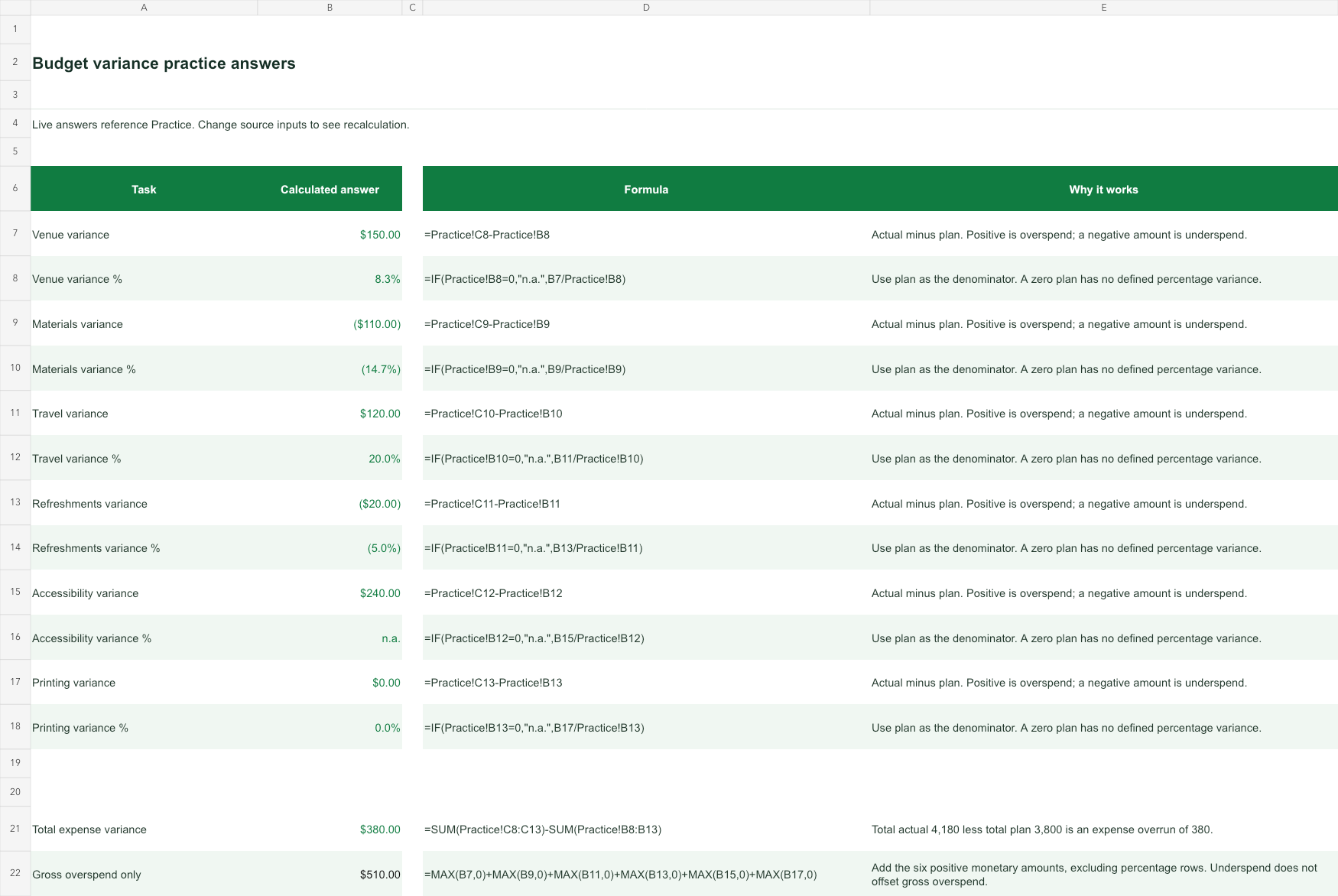
=C8-B8Result: 150
Materials variance · D9
=C9-B9Result: -110
Travel variance · D10
=C10-B10Result: 120
Refreshments variance · D11
=C11-B11Result: -20
A mistake to catch
Subtracting in the wrong order, so an overspend reads as a saving.
Correction. Decide the direction once, actual minus plan, and say it in words before typing. Check the sign on one row by hand.
Read the result
A positive variance means the line is over budget and a negative one means it is under. The sign is the first thing a reader acts on.
What should an Excel exercise with answers actually give you?
Four things: a task stated in plain words, source data you did not type yourself, a blank cell to write the formula in, and a way to check the result. If any of the four is missing, you are reading a worked example rather than practicing. A worked example is useful once, but it does not build the habit of writing a formula from a question.
The answer itself should show the method and the check. A key that gives only the finished value tells you whether you passed, not why you failed. Look for a key that names the argument or cell that went wrong, so you can trace the error back to a wrong reference, a wrong criterion or text that was never cleaned.
A PDF of finished answers is weak practice because it invites copying. You read the formula, it looks sensible, you type it in, and the exercise is over without a single decision being made. If a PDF is all you have, cover the answer column and write your formula first, then compare line by line.
Two routes give you source data and answer keys without a PDF: the browser lessons on the lessons page, and the XLSX workbooks on the downloads page, which carry source data, blank task cells and answer keys.
Five Excel exercises with answers to try now
Type this small table into a blank sheet. Put Sales in B1 and Region in C1, then enter the values below in rows 2 to 6. Cover each answer and write your own formula first.
Sales in B2:B6 are 120, 80, 95, 60 and 145. Regions in C2:C6 are East, West, East, West and East. Column A can hold any order numbers you like.
Exercise 1: find the total sales. Answer: =SUM(B2:B6) returns 500.
Exercise 2: find the total sales for East only. Answer: =SUMIF(C2:C6,"East",B2:B6) returns 360. The first range is where Excel looks for the criterion, and the last range is what it adds.
Exercise 3: count how many orders are above 90. Answer: =COUNTIF(B2:B6,">90") returns 3, for the orders worth 120, 95 and 145.
Exercise 4: find the average sale for East. Answer: =AVERAGEIF(C2:C6,"East",B2:B6) returns 120.
Exercise 5: show East as a share of all sales. Answer: =SUMIF(C2:C6,"East",B2:B6)/SUM(B2:B6) returns 0.72, which you can format as 72%.
Check each one with the routine below. If an answer differs from yours, find the range or criterion that went wrong before you copy the key. The SUMIF lesson and COUNTIF lesson practice these same patterns on new data.
Which Excel exercise should you start with?
Use one quick self-check. Open a blank sheet, type a small table, and try to write the formula the exercise asks for without looking at anything. Then say each argument out loud: which range, which criterion, which column. If you can do that, the exercise is at your level. If you cannot, it is one step too far and you will end up copying.
Beginners should start with cell references, arithmetic, SUM, AVERAGE and COUNT before touching IF. Those five skills underpin almost everything later, and they are quick to check by hand. Work through the references lesson and the arithmetic lesson until a row multiplication and a copied formula behave as you expect.
If references are shaky, do not move to lookups. A lookup that returns the wrong row is usually a reference problem wearing a disguise: a range that shifted when copied, or a column index counted from the wrong edge. Fix relative and absolute references first, then come back to lookup with a clean foundation.
Choose exercises that isolate one skill, then mix it with an earlier one. A SUM exercise on its own is fine; a SUM inside an IF is where the learning happens. Match the exercise to a task you actually face, such as a monthly total or a list to reconcile, rather than working through a random list of functions.
What order should you practice Excel skills in?
Start with references and arithmetic, then aggregation, then logic, then lookup, then text cleaning. That order is not arbitrary: each layer assumes the one before it. An IF that returns the wrong branch is often a comparison against a reference that moved, and a lookup that fails is often text that was never trimmed.
After lookup, practice criteria functions and dynamic arrays on the same data. The COUNTIF lesson and the XLOOKUP lesson use the same table, so you can see how a criterion and a lookup key differ. Text cleaning comes last because it changes the data the earlier formulas read, and you want to see that effect deliberately.
Move to tables, sorting, filtering, pivot summaries, charts and keyboard shortcuts only when the formula layer is reliable. Those tools are faster to learn once you can read a range and predict what a formula will do with it. Learning them first hides formula mistakes behind a tidy summary.
Revisit earlier skills on new data instead of doing a topic once. A skill practiced on one dataset is often memorized rather than understood. When a skill works alone but fails when combined with others, that is the signal to move to a guided project, where several skills share one worksheet.
How do you check an answer without peeking?
Write your expected result in words before you enter the formula. Not the number, the description: the total for one region, the count of rows that meet two conditions, the name matched to a code. If you cannot say what the result should represent, the exercise is not ready to grade.
Test on a sample row you can calculate by hand, then change one input and watch whether the result moves in the right direction. If you raise a value in a row that should be included, the total should rise. If it does not move, your range is probably wrong. This directional check catches more errors than staring at the final figure.
Use a separate check cell rather than editing the answer cell. A logical test that compares your result with a known value, or an ISNUMBER check on a column that should be numeric, gives you a second opinion without disturbing the formula you are testing. The logical lesson covers the comparison operators you need.
If the answer is wrong, read the feedback for the cell, not just the final value. A cell-level message that names the wrong cell lets you ask a specific question: is the reference absolute where it should be, is the criterion text where it should be a number, is the lookup column counted from the right edge. Reveal the answer key only after you have named the likely error in your own words.
- State the expected result in words before typing the formula.
- Calculate one sample row by hand and compare.
- Change one input and check the result moves in the right direction.
- Add a separate check cell with a logical test.
- Name the likely error, then open the answer key.
What mistakes make Excel practice feel productive when it is not?
Copying the answer formula and telling yourself you understand it is the most common one. The test is simple: close the key, open a blank sheet, and rewrite the formula from the question. If you cannot, you read the answer rather than learned it.
Doing exercises on the same dataset until the answer is memorized is the second. You start to recognize the row rather than the pattern. Change the data, or find an exercise that uses the same skill on different rows, and the memorized answer stops working, which is the point.
Watching a solution video without writing the formula feels like learning and is closer to watching television. Pause before the solution appears, write your attempt, then compare. The same applies to skipping the error message and starting again from scratch: the message is the most useful sentence on the screen.
Jumping between topics instead of revisiting a weak skill on fresh data spreads your practice thin. Keep a short list of the two or three skills that keep failing, and return to them on new data each week. The COUNTIF and COUNTIFS practice guide shows how to vary criteria without changing the skill.
How can you practice Excel without installing it?
Use a browser-based course if Excel is not installed. Check two things before you commit: the exercise runs in the browser, and it accepts your formula in the cell and checks the result. If either is missing, you are reading rather than practicing.
Excel Practice is one option. It runs in the browser, so Excel does not need to be installed.
Downloadable XLSX workbooks are optional for offline work, not required for browser practice. They are useful when you want to work without a connection or print a task sheet, but the checking routine above works the same either way. The point is to predict, test and explain, not to collect finished files.
How do you use an answer key to learn, not just grade?
After a correct answer, close the key and rewrite the formula from memory. Then explain it in plain words: what each range is, what each criterion does, and what happens on a blank or text value. If the explanation has a gap, that gap is what to practice next.
Change the data and predict the new result before recalculating. Break the formula on purpose, by removing an absolute reference or changing a criterion, and see which part controls the result. The INDEX and MATCH lesson is a good place to do this, because a small reference change moves the whole lookup.
Keep a mistake log by type: wrong reference, wrong criteria, wrong lookup column, text not cleaned. After a few weeks the log tells you which type dominates, and that is the skill to revisit. Return to the same skill later on different data so the answer cannot be memorized, and use a graded exercise that flags the specific wrong cell to speed up the diagnosis.
- Close the key and rewrite the formula from memory.
- Explain each argument in plain words.
- Change the data and predict the new result.
- Break one part on purpose and note the effect.
- Log the mistake by type and revisit that skill on new data.
Practice the skills in order
- Absolute references Lock a shared rate so copied formulas still refer to the same cell.Preview this task
- Arithmetic Referenced formulas keep calculations connected when the source data changes.Preview this task
- SUMIF Turn an order log into a category total without sorting or deleting rows.Preview this task
- IF Consistent rules make status reports easier to understand and maintain.Preview this task
This guide covers practice method, not every Excel function. It does not teach pivot tables, charts or macros in detail, does not quote prices, and does not promise job or interview outcomes.
Practice Excel exercisesContinue in a downloadable workbook
Budget variance practice
Explain signed expense variance, overspend and percentage variance without hiding a zero budget.
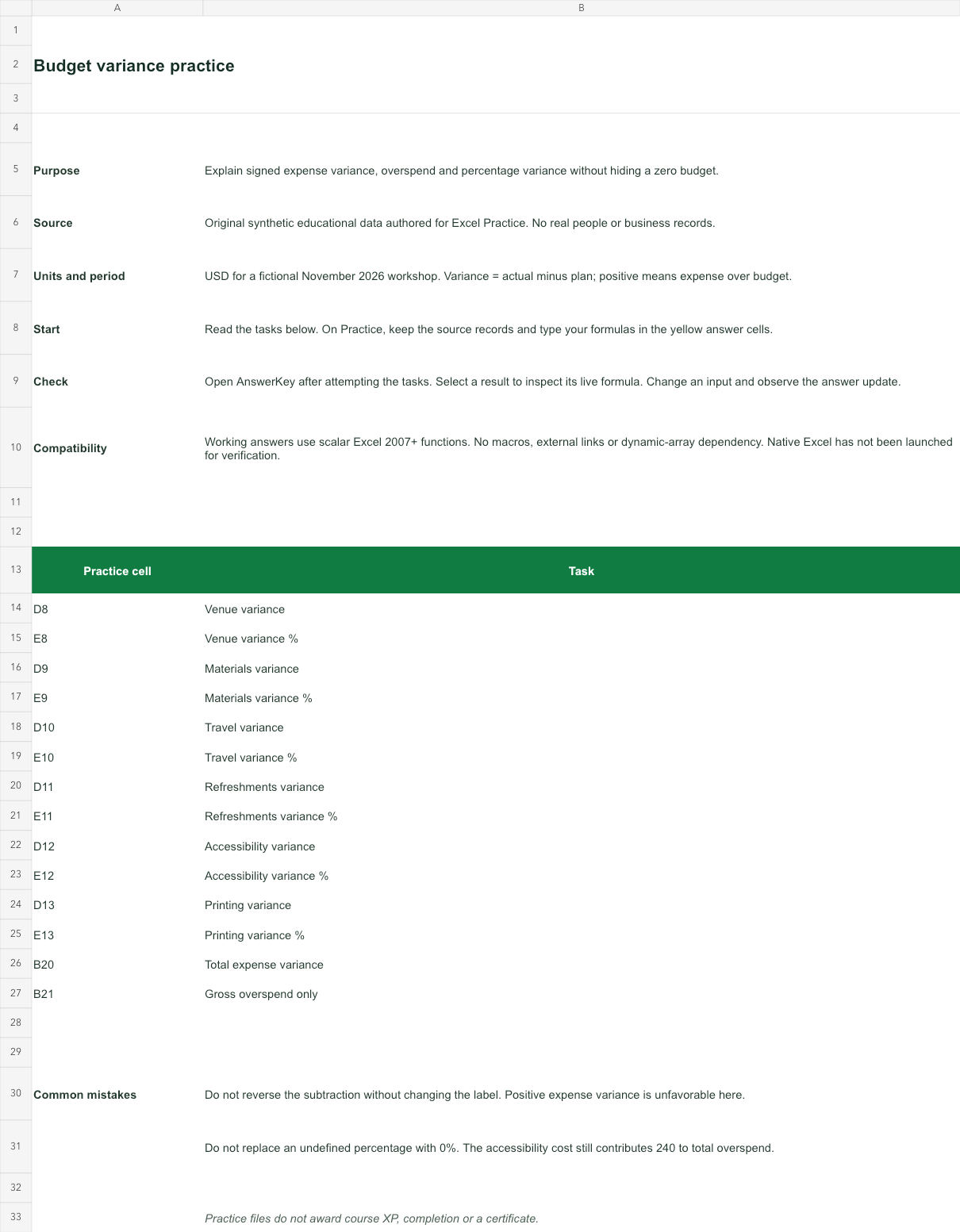
USD for a fictional November 2026 workshop. Variance = actual minus plan; positive means expense over budget.
Bank version 2026-11-02. Includes Instructions, Practice, AnswerKey; 14 live answer formulas. All source records are invented for education.
The download is an additional practice task. Its Instructions sheet identifies the source coordinates; this page’s illustrative example may use different records.
- Working answers use scalar Excel 2007+ functions. No macros, external links or dynamic-array dependency. Native Excel has not been launched for verification.
Further reading
- Overview of formulas in Excel Microsoft Support
- VLOOKUP function Microsoft Support