
Before you read the answers
- Work out actual minus plan for each budget line.
- Say which cell is the base before you divide.
- Reverse one result to prove it returns the actual value.
All examples use original synthetic data. Source row numbers and column letters are shown so you can reproduce the formulas.
The change before it becomes a percentage
Work out actual minus plan for each budget line. This difference is the top of a percentage change formula, and the plan is the base underneath it.
USD for a fictional November 2026 workshop. Variance = actual minus plan; positive means expense over budget.
| Row | A · Expense | B · Plan (USD) | C · Actual (USD) | D · Variance: your formula | E · Variance %: your formula |
|---|---|---|---|---|---|
| 8 | Venue | 1800 | 1950 | Blank task cell | Blank task cell |
| 9 | Materials | 750 | 640 | Blank task cell | Blank task cell |
| 10 | Travel | 600 | 720 | Blank task cell | Blank task cell |
| 11 | Refreshments | 400 | 380 | Blank task cell | Blank task cell |
| 12 | Accessibility | 0 | 240 | Blank task cell | Blank task cell |
| 13 | Printing | 250 | 250 | Blank task cell | Blank task cell |
Worked solution and complete results
Venue variance · D8
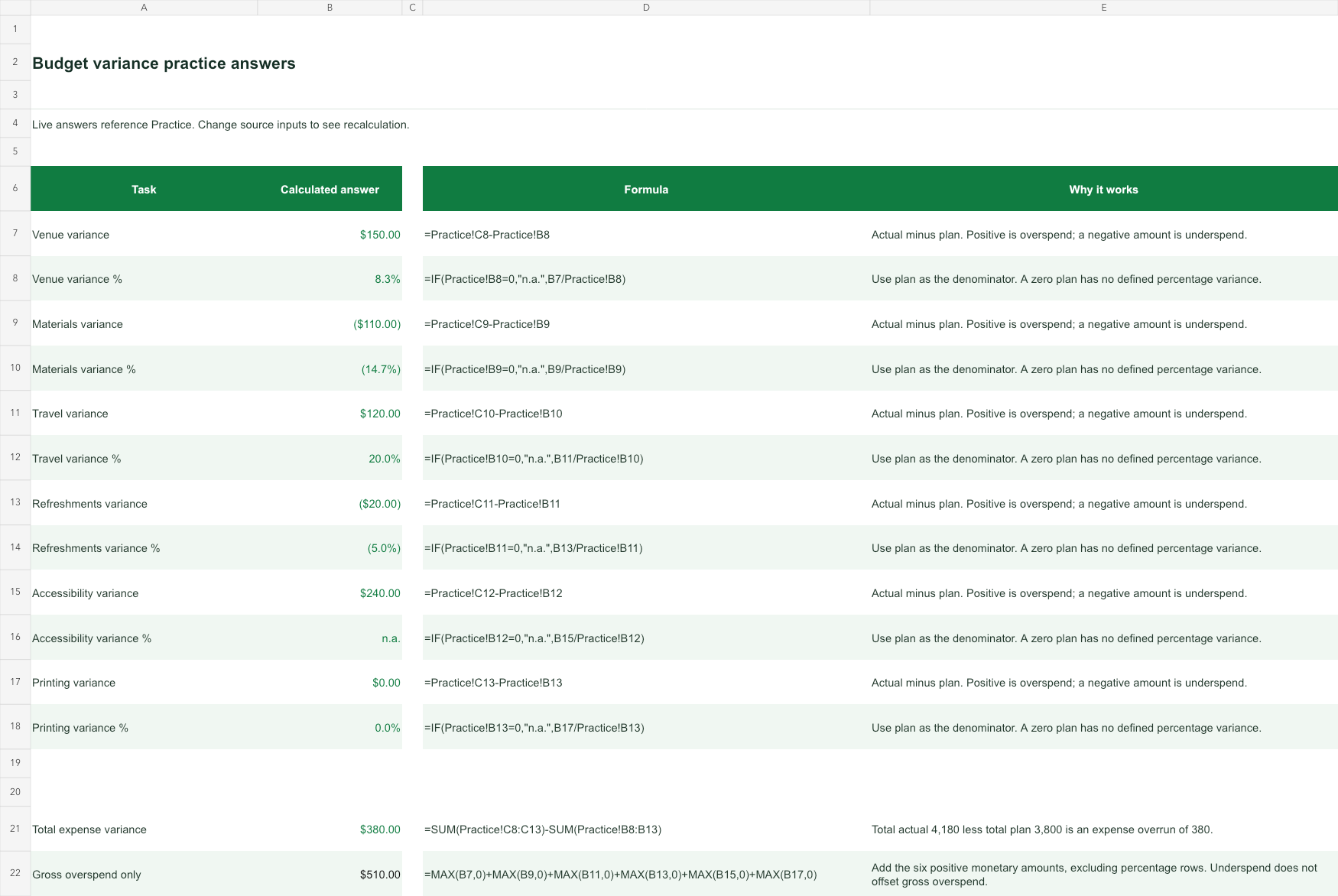
=C8-B8Result: 150
Materials variance · D9
=C9-B9Result: -110
Travel variance · D10
=C10-B10Result: 120
Refreshments variance · D11
=C11-B11Result: -20
A mistake to catch
Dividing by the actual value instead of the plan, or letting the plan reference move when the formula is filled down.
Correction. Treat the plan as the base and lock its reference before filling, then reverse the change on one row to confirm it returns the actual value.
Read the result
A positive change means the actual is above plan and a negative one means it is below. The percentage shows how large the gap is relative to the plan.
What is percentage change actually comparing?
Percentage change compares one value with an earlier or original value. The earlier value is the base, and it goes in the denominator. The later value is the new value, and it goes in the numerator after you subtract the base. Say the calculation in words before you type anything: new minus base, divided by base.
The base is the whole decision. Swap the two cells and you get a different answer with a different sign, and neither version is wrong arithmetic, just a different question. Write from and to in the header row above the two cells so the direction is fixed before the formula exists. If you cannot say which cell is the base out loud, stop and decide that first.
Keep percentage change separate from two neighbours that look similar. Percentage difference compares two values without treating either as the starting point, usually by dividing by an average or a midpoint. A percentage of a total divides a part by the sum of all parts. Neither answers the question a percentage change column is asked, so do not let the formulas drift into each other. The arithmetic itself is covered in the arithmetic lesson, and the reference behavior you need for filling a column is in the references lesson.
In the sample budget table above, Venue went from a plan of 1,800 to an actual of 1,950, so (1950-1800)/1800 returns 0.0833, or 8.3%. Materials went from 750 to 640, so (640-750)/750 returns -0.1467, or -14.7%. Printing stayed at 250, so its change is 0%.
- Label the earlier or original value as the base in the header.
- Label the later or current value as the new value.
- Write the calculation in words before entering a formula.
- Decide whether you are measuring change from a starting point or comparing two values without one.
How do you calculate percentage change between two numbers in Excel?
Put the base in one cell and the new value in another on the same row. In a third cell, build the formula from references rather than typed numbers: new value minus base, in parentheses, divided by base. The parentheses matter because subtraction and division do not run left to right in the order people expect. Without them the division happens before the subtraction and the result is meaningless. Microsoft's overview of formulas sets out the order of operations, so check it once rather than guessing.
Format the result cell as a percentage after the calculation instead of multiplying by 100 in the formula. The underlying value stays a decimal, which is what you want for any further calculation. Check the formula bar to confirm the cell still holds a decimal such as 0.0833.
Read the sign against the direction you set up. A positive result means the new value is above the base; a negative result means it is below. If the sign is the opposite of what the data says, the two references are probably the wrong way round. Fix the references rather than adding a minus sign to force the answer.
- Enter the base and the new value in separate cells on the same row.
- Write the formula as (new value minus base) divided by base, using cell references.
- Press Enter and check the sign against the direction of the change.
- Format the result cell as a percentage, leaving the stored value as a decimal.
Which cell is the base when you fill a percentage change column?
There are two different columns people call percentage change, and they need different references. In a row-by-row column, each row compares its own earlier and later values, so both references move down with the row. In a fixed-base column, every row compares against one starting value, so the base reference must stay locked while the new value moves. Decide which one the report needs before you write the first formula.
For a row-by-row column, relative references are correct and filling down is safe. For a fixed-base column, lock the base cell with dollar signs or a named range before filling. Named ranges help when the base is a single labeled cell, but they do not rescue a reference that was already wrong. The locking decision is practiced in the mixed references lesson.
After filling down, check the first row, a middle row and the last row. The last row is where a base reference that should have been locked usually shows itself, because the formula has drifted by then. Also check what happens if someone inserts a column or sorts the sheet: a formula built on a hard-coded column letter can quietly point at the wrong data.
- Decide whether each row has its own base or every row shares one base.
- Use relative references for a row-by-row column.
- Lock the base cell or column for a fixed-base column before filling down.
- Inspect the first, a middle and the last row after filling.
How do you handle percentage change with negative numbers?
Keep the original base as the denominator even when it is negative. The formula does not change, but the sign stops matching intuition. A move from -100 to -50 is an increase of 50, yet (-50-(-100))/-100 returns -50%, because dividing by a negative base flips the sign. Read the result together with both values, or report the change in plain units instead.
Do not reach for ABS as a default fix for a negative answer. Some teams divide by the absolute value of the base, as in (new-base)/ABS(base), so that an increase always reads as positive. That is a legitimate choice if you state it in the header. Using ABS on the whole result is different, because it removes the sign and hides direction.
Check a negative-base row by reversing the calculation. Multiply the base by one plus the percentage change and compare the result with the new value. With the example above, -100*(1+(-0.5)) returns -50. If the reverse does not land back on the new value, the base or the sign is wrong somewhere upstream.
- Leave the formula unchanged and keep the negative base in the denominator.
- Read the sign alongside both values rather than on its own.
- Use ABS only when you want the size of the change and label that choice.
- Reverse the calculation on one negative-base row to confirm it.
What should you do when the base is zero or blank?
Division by zero is undefined, and Excel returns an error rather than a number. That is correct behavior, not a bug to suppress. Decide before you build the column what a zero base should mean in this report: not applicable, no measurable change, or a data problem that needs fixing upstream. Write that decision into the header or a note so the reader is not left guessing.
The sample table has exactly this case. Accessibility had a plan of 0 and an actual of 240, so (240-0)/0 returns a #DIV/0! error. No percentage can be measured from a base of zero, so say that in the report instead of forcing a number.
Blank cells are a separate case from zero cells. A blank base often means missing data, while a zero base often means a real value of nothing. Treat them differently. Use IF or IFERROR to show a clear message for the case you have chosen, but do not wrap the whole column in IFERROR just to make it look tidy. A blanket wrapper hides wrong references and wrong data types along with the genuine zero case.
If you need to audit the errors, keep the original formula in a helper column and put the friendly message in the report column. That way the error stays visible to you and the reader sees the message. The IFERROR and IF lessons cover the message side, and the ISBLANK lesson covers telling blank from zero.
- Decide what a zero base means for this report before writing the column.
- Check blank bases separately from zero bases.
- Use IF or IFERROR to show a clear message for the chosen case.
- Keep the original formula in a helper column if you need to audit errors.
What order should you practice percentage change in?
Start with one base and one new value in two cells and say the calculation out loud. Move to a row-by-row column where every row has its own base and new value. Then build a fixed-base column that compares every row to one starting value, and lock the reference before filling. Add negative bases only after the positive cases are reliable, then add zero and blank bases with your chosen messages. Finish with formatting and the reverse check on a small worksheet that mixes all the cases.
Repetition matters more than variety at first. Run the same pattern on different data a few days later so the method is recognized rather than one answer remembered. A guided project that combines several skills on one worksheet is a good final step, and the projects page shows how one is structured.
Excel Practice is one option for graded repetition that shows what to fix. It runs in the browser, so Excel does not need to be installed. The downloadable workbooks include source data, blank task cells and answer keys, so you can run the same routine offline.
- One base and one new value, said out loud.
- A row-by-row column with relative references.
- A fixed-base column with the base locked.
- Negative bases, then zero and blank bases with clear messages.
- Formatting and the reverse check on a mixed worksheet.
Which mistakes should you catch before trusting a percentage change column?
The wrong base is the most common mistake. Dividing by the new value, or by a total, gives a plausible-looking number that answers a different question. The wrong order is close behind: subtracting base from new when the direction is the other way round flips the sign. A base reference that moved when the formula was filled down is the third, and it is the one that survives a spot check because the first row looks fine.
Format and data type cause quieter failures. A decimal left as a decimal reads as a tiny number, and a percentage typed as text will not fill or total. Numbers stored as text, extra spaces from an import, or hidden rows can all change what the column appears to say. Rounding too early is another: if you round the percentage change before the reverse check, the check can fail even when the method is right. Keep the full value for calculation and round only for display, as covered in the rounded lesson.
Sign confusion with negative bases deserves its own pass. Run the column once with the sign shown and once with the direction written in words beside it. If the two disagree, the formula or the base is wrong. The VALUE lesson helps when imported numbers arrive as text.
- Confirm the denominator is the original value, not the new value or a total.
- Confirm the subtraction runs new minus base.
- Confirm the base reference did not move when filled down.
- Confirm the cell is a number formatted as a percentage, not text.
- Confirm no early rounding is breaking the reverse check.
How do you check a percentage change answer in Excel?
Reverse the change. Multiply the base by one plus the signed percentage change, where a decrease is a negative percentage, and compare the result with the new value. If the reverse lands back on the new value, the base and the sign are almost certainly right. If it does not, inspect the base reference before you touch the formula, because the arithmetic is usually fine and the reference is not.
Check the sign and the size separately. A result can have the right size and the wrong sign, or the right sign and the wrong size. Use a second helper formula rather than trusting the same formula twice, and spot check the first, a middle and the last row of a filled column. Check the zero and blank rows against the message you chose, not against a number.
Keep the base and the new value visible next to the percentage change column. A reader who can see both can sanity-check the direction without opening the formula. If the column is going into a chart, note the bases when they are very different, because a large percentage change on a small base can look more important than it is.
- Multiply the base by one plus the signed change.
- Compare the reverse result with the new value.
- Check the sign and the size as two separate questions.
- Spot check the first, a middle and the last row.
- Check zero and blank rows against the chosen message.
Practice the skills in order
- Arithmetic Referenced formulas keep calculations connected when the source data changes.Preview this task
- Absolute references Lock a shared rate so copied formulas still refer to the same cell.Preview this task
- Mixed references Rate-by-quantity tables need one fixed input column and one fixed rate row. Mixed references preserve just the coordinate that must stay put.Preview this task
This guide does not cover compound growth over several periods, percentage difference between two values with no base, or chart design for percentage change. It also does not cover currency or unit conversion before the calculation.
Practice percentage changeContinue in a downloadable workbook
Budget variance practice
Explain signed expense variance, overspend and percentage variance without hiding a zero budget.
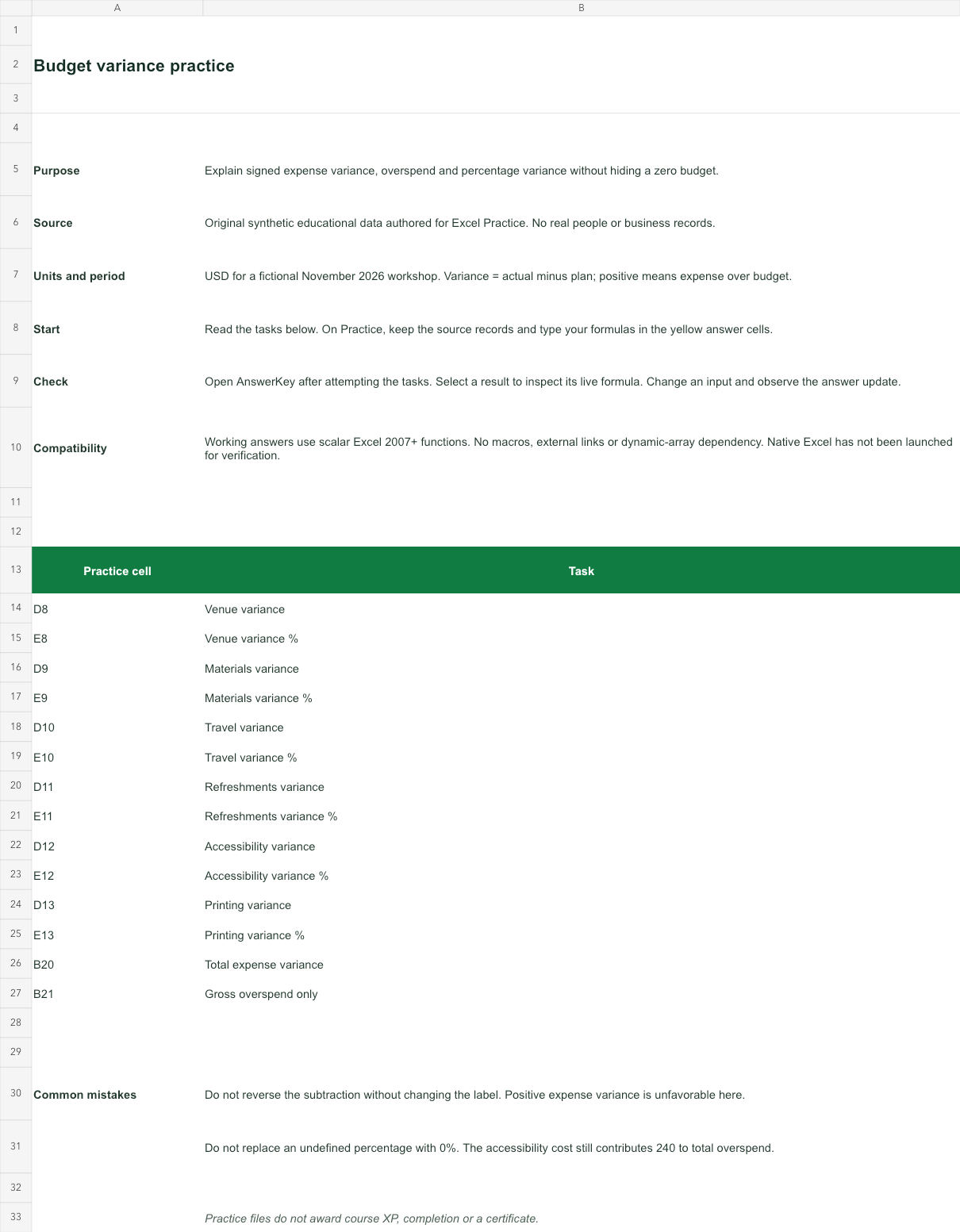
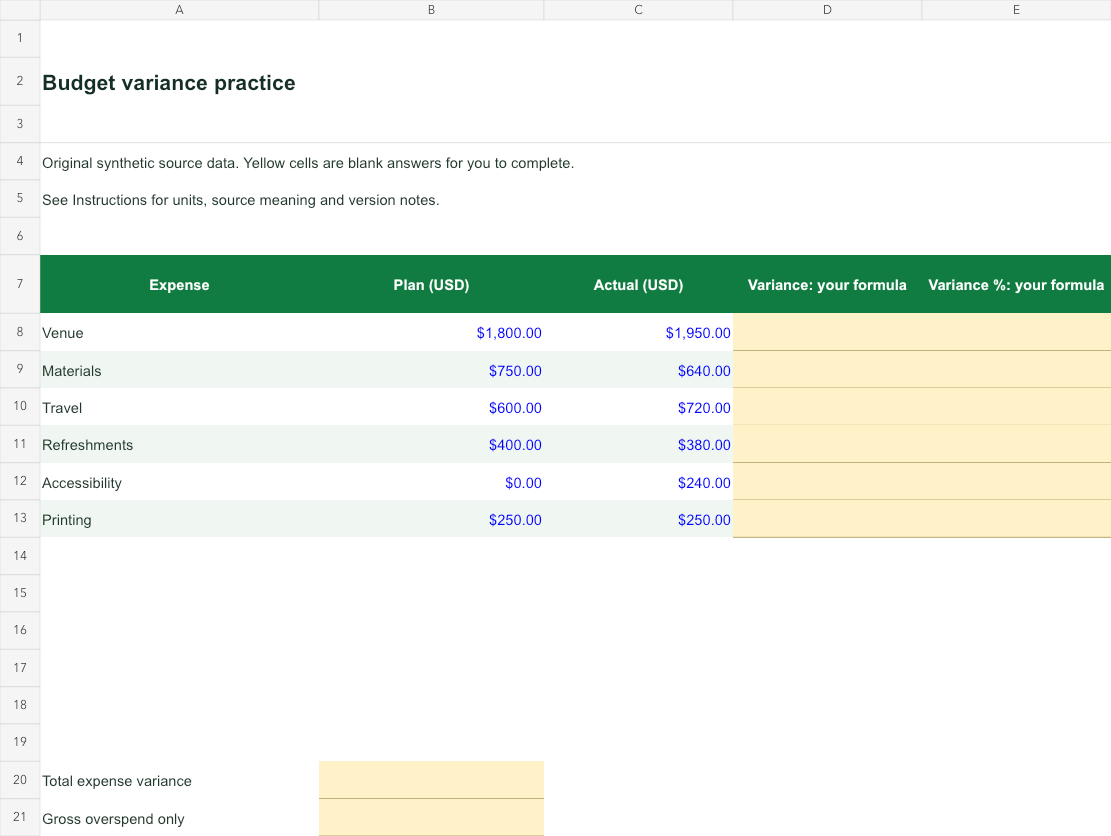
USD for a fictional November 2026 workshop. Variance = actual minus plan; positive means expense over budget.
Bank version 2026-11-02. Includes Instructions, Practice, AnswerKey; 14 live answer formulas. All source records are invented for education.
The download is an additional practice task. Its Instructions sheet identifies the source coordinates; this page’s illustrative example may use different records.
- Working answers use scalar Excel 2007+ functions. No macros, external links or dynamic-array dependency. Native Excel has not been launched for verification.
Further reading
- Overview of formulas in Excel Microsoft Support