Formulas
Total monthly sales by region with SUMIFS in Excel
Your manager wants November sales in the West region. The export includes October and December, plus other regions on the same dates. Use SUMIFS with two date conditions and a region condition. The result for this worksheet is $2,000.

On this page
Set up a small sales export
Put the headers in A1:C1. Enter the six transactions in rows 2 through 7. Excel needs real dates in column A and numbers in column C. If pasting the dates leaves them as text, enter them with DATE. For example, type =DATE(2026,11,6) for November 6 and display the cell as a date.
| Date | Region | Sales |
|---|---|---|
| 2026-10-31 | West | 900 |
| 2026-11-06 | West | 1250 |
| 2026-11-06 | East | 730 |
| 2026-11-18 | West | 450 |
| 2026-11-30 | West | 300 |
| 2026-12-01 | West | 610 |
Set E2 to =DATE(2026,11,1) and enter West in E3. You can format E2 to display just month and year. The value underneath still needs to be the first day of the month. Try November and West in the example on this page, then change the region to East. Only the $730 transaction should remain in the total.
See the worksheet diagram
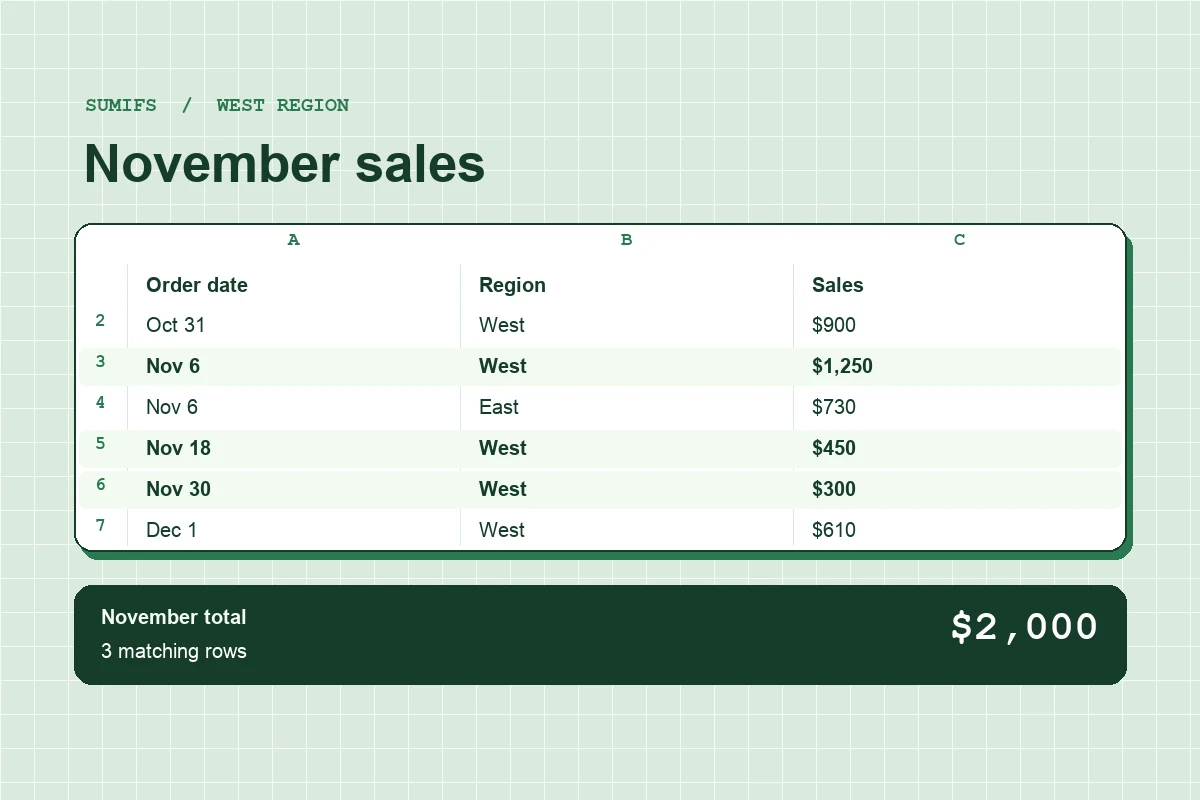
Monthly sales calculator
Choose a month and region to see which rows SUMIFS adds.
$2,000 across 3 sales for November 2026 in West.
| Date | Region | Sales |
|---|---|---|
| 2026-11-06 | West | $1,250 |
| 2026-11-18 | West | $450 |
| 2026-11-30 | West | $300 |
See the Excel formula
Enter in E5 on this worksheet.
=SUMIFS($C$2:$C$7,$A$2:$A$7,">="&DATE(2026,11,1),$A$2:$A$7,"<"&DATE(2026,12,1),$B$2:$B$7,"West") Write the date and region conditions
Put this formula in E5. The first range supplies the sales numbers. Each range after that has a condition, and Excel adds a row only when it passes all three conditions.
=SUMIFS($C$2:$C$7,$A$2:$A$7,">="&E2,$A$2:$A$7,"<"&EDATE(E2,1),$B$2:$B$7,E3)">="&E2includes transactions on November 1 and later. The quotes belong around the comparison operator, and&attaches the date in the cell."<"&EDATE(E2,1)excludes December 1 and later. HereEDATE(E2,1)gives December 1 becauseE2is November 1.$B$2:$B$7,E3keeps just West. Pointing atE3lets you check East without editing the formula.
The three West transactions that qualify are $1,250, $450 and $300. The East transaction on November 6 passes both date checks but fails the region check. The October 31 and December 1 entries are both West, but they sit outside November.
Keep the last day when the source includes times
A report may store November 30 at 4:30 p.m. in one cell. A condition of <= November 30 compares the value against midnight at the start of that day and can drop the afternoon transaction. The strict comparison with December 1 includes the entire last day. It works the same way for February and for December rolling into January.
Keep the same top and bottom rows in all three source ranges. If you add a row at the bottom of the export, extend each range. For a recurring report, an Excel table is useful because its column references can grow with the source.
Check an unexpected total before sending the report
Filter the source by date and region and compare those rows with the formula. =ISNUMBER(A2) can reveal a date stored as text. Use it on a suspect sales cell too. Convert text dates and amounts to numeric values before reformatting. Also check the region spelling and any spaces from the export.
Copy the worksheet for next month and change E2 to December 1. The six-row example should now return $610 for West. In the SUMIFS lesson, practice reading the range and condition pairs against a different worksheet.
Try it on another worksheet
Practice SUMIFSRead the lesson guideSee a SUMIFS work sample for hiring