
Before you read the answers
- Calculate weekly wages for every role slot from paid hours and hourly rate.
- Separate wages from the employer allowance applied on top.
- Check that the loaded total is not quoted as the pay rate.
All examples use original synthetic data. Source row numbers and column letters are shown so you can reproduce the formulas.
Work out eight weeks of role cost
For each of the eight role slots, multiply paid hours by the hourly rate to get weekly wages. Read the result line by line before adding anything.
USD for one invented planning week. Hours are paid hours.
| Row | A · Role slot | B · Team | C · Paid hours | D · Hourly rate (USD) | E · Wages: your formula |
|---|---|---|---|---|---|
| 8 | SC-01 | Support | 32 | 26 | Blank task cell |
| 9 | SC-02 | Packing | 38 | 23.5 | Blank task cell |
| 10 | SC-03 | Support | 24 | 28 | Blank task cell |
| 11 | SC-04 | Dispatch | 35 | 25 | Blank task cell |
| 12 | SC-05 | Packing | 30 | 23.5 | Blank task cell |
| 13 | SC-06 | Dispatch | 28 | 27 | Blank task cell |
| 14 | SC-07 | Support | 36 | 26 | Blank task cell |
| 15 | SC-08 | Packing | 20 | 24 | Blank task cell |
Worked solution and complete results
SC-01 Support wages · E8
=C8*D8Result: 832
SC-02 Packing wages · E9
=C9*D9Result: 893
SC-03 Support wages · E10
=C10*D10Result: 672
SC-04 Dispatch wages · E11
=C11*D11Result: 875
SC-05 Packing wages · E12
=C12*D12Result: 705
SC-06 Dispatch wages · E13
=C13*D13Result: 756
SC-07 Support wages · E14
=C14*D14Result: 936
SC-08 Packing wages · E15
=C15*D15Result: 480
A mistake to catch
Adding the paid hours together and multiplying by one rate assumes every shift is paid the same, which is false here: rates run from 23.50 to 28.00.
Correction. Keep the multiplication at row level, then add the wage column. The row result is the unit that stays correct when a rate changes.
Read the result
The rate you quote must stay separate from the loaded cost. The allowance is an employer cost on top of wages, not part of what the worker is paid per hour.
What the staffing report has to answer
A staffing report answers two different questions that look the same in a total: what the week of work costs in wages, and what the employer pays once allowance is included. Collapsing them produces a number nobody can act on.
Start from the shift records rather than from a headline total. Each record carries a role slot, a team, paid hours and an hourly rate. Those four fields are enough to build the wage line for every row.
- Identify which column is paid hours and which is the rate.
- Multiply them on the same row, never across rows.
- Add the wage column only after every row reads correctly.
Why row multiplication matters
Multiplying a sum of hours by an average rate gives a figure that matches no shift. The arithmetic can be correct and the answer still unusable, because the assumption that every hour carries the same rate was never stated.
Row multiplication keeps the rate attached to the row it belongs to. When one rate changes, exactly one row moves, which is what makes the report reviewable by somebody else.
Separating wages from employer cost
Wages are what the worker earns. The allowance is an additional employer cost, applied on top. Reporting the loaded figure as though it were the pay rate overstates what the role pays per hour.
Keep both numbers visible. A reader deciding whether to fill a shift needs the wage; a reader setting a budget needs the loaded cost.
- State the allowance as a percentage of wages, in its own cell.
- Show wages and loaded total as two lines, never one.
- Quote an hourly rate only from the rate column.
Read the result before you trust it
Check one row by hand. Sixteen paid hours at a stated rate should produce the wage shown for that row. If it does not, the problem is upstream of the total.
Then check the direction of the loaded total: it must exceed wages by the allowance, never by a different amount. If the gap is wrong, the allowance cell is probably not absolute, so it moved when copied.
Where this breaks in a real report
Paid hours are not the same as hours worked. Unpaid breaks, authorised overtime and shift premiums all break a simple hours-times-rate line, and none are included in this walkthrough.
Holiday accrual and employer contributions are usually calculated on a different basis again. Treat the loaded total here as a planning estimate, and take the statutory figure from payroll rather than from a spreadsheet.
Practise the skills in order
Begin with arithmetic so the row multiplication is automatic, then references so an allowance cell stays fixed when copied. Conditional totals come last, when the report needs one team rather than all eight rows.
- Arithmetic for the row multiplication.
- References to keep the allowance absolute.
- SUMIFS when the report is filtered to one team.
Practise the skills in order
- Arithmetic Read the guide, then open the actual lesson.
- Absolute references Read the guide, then open the actual lesson.
- SUMIFS Read the guide, then open the actual lesson.
Illustrative planning arithmetic only. No overtime premiums, payroll taxes, pension contributions or employment-law rules are applied.
Practise row multiplicationContinue in a downloadable workbook
Staffing cost practice
Build a weekly staffing cost report from hours and hourly rates, with an explicit employer-cost allowance.
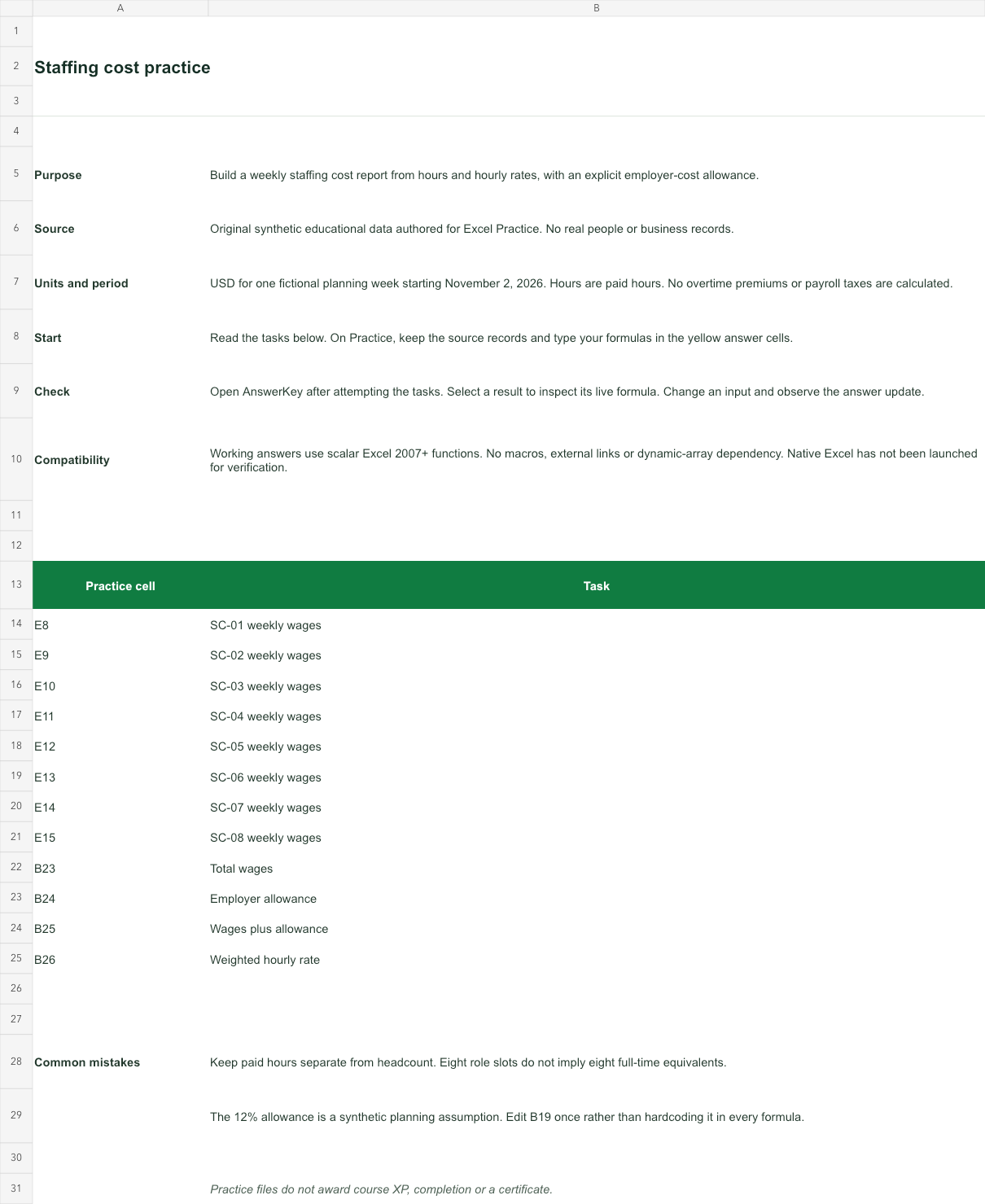
USD for one fictional planning week starting November 2, 2026. Hours are paid hours. No overtime premiums or payroll taxes are calculated.
Bank version 2026-11-02. Includes Instructions, Practice, AnswerKey; 12 live answer formulas. All source records are invented for education.
The download is an additional practice task. Its Instructions sheet identifies the source coordinates; this page’s illustrative example may use different records.
- Working answers use scalar Excel 2007+ functions. No macros, external links or dynamic-array dependency. Native Excel has not been launched for verification.