
Before you read the answers
- Splitting a list looks simple until the output lands in the wrong columns. This guide gives you a practice order and a checking routine you can run on your own data.
All examples use original synthetic data. Source row numbers and column letters are shown so you can reproduce the formulas.
Splitting a contact list into first and last name
Split a single name column into separate first and last name columns and check the result against a manual expected row.
Invented organization labels, registration IDs and seat counts. No personal names, addresses, email or phone numbers.
| Row | A · Record ID | B · Raw organization | C · Registration | region | D · Seats as text | E · Clean name: your formula |
|---|---|---|---|---|---|
| 8 | CT-01 | " Aster workshop " | TR-401|East | " 0042 " | Blank task cell |
| 9 | CT-02 | "BIRCH STUDIO" | TR-402|West | " 18 " | Blank task cell |
| 10 | CT-03 | " cedar learning" | TR-403|North | 7 | Blank task cell |
| 11 | CT-04 | "DUNE LAB" | TR-404|South | " 0 " | Blank task cell |
| 12 | CT-05 | "elm group " | TR-405|East | " 25 " | Blank task cell |
| 13 | CT-06 | " FIR SPACE " | TR-406|West | 11 | Blank task cell |
Worked solution and complete results
split the first contact name into its parts · E8
=PROPER(TRIM(B8))Result: Aster Workshop
split the second contact name into its parts · E9
=PROPER(TRIM(B9))Result: Birch Studio
split a name that contains a middle initial · E10
=PROPER(TRIM(B10))Result: Cedar Learning
split a name with a trailing space · E11
=PROPER(TRIM(B11))Result: Dune Lab
split a name with a repeated delimiter · E12
=PROPER(TRIM(B12))Result: Elm Group
split the last contact name in the list · E13
=PROPER(TRIM(B13))Result: Fir Space
A mistake to catch
Typing the formula once, seeing two columns appear, and copying it down the column instead of letting it spill.
Correction. Enter the formula once in the top cell, clear the cells below, and compare the spill range with the manual expected row before touching anything else.
Read the result
If the spill width matches the expected columns and the EXACT checks pass, the split is reading the delimiter you intended. If a row disagrees, the source text for that row is the place to look, not the formula.
What should you practise first with TEXTSPLIT?
Start with one delimiter and one source column. Take a short list of names separated by commas, put it in a single column, and split it into columns. Do not add a second delimiter or a second source column until the single split is reliable. The syntax and delimiter arguments are documented on Microsoft's TEXTSPLIT page, which is worth reading once before you start.
Before you type the formula, predict the spill range. Say out loud how many columns and how many rows you expect. Then enter the formula and compare the highlighted spill area with your prediction. If the shape is wrong, the problem is the delimiter or the source, not the function.
Keep the source column untouched. Put the split formula in a cell to the right of the data, never on top of it, so you can rerun the exercise after a mistake. If you are still building confidence with text functions generally, work through [the text lesson](/lessons/text/) first, then come back.
- Put the source list in one column, one row per record.
- Write the expected split by hand in the columns to the right.
- Enter the TEXTSPLIT formula in a clear cell below or beside the expected output.
- Compare the spill range with your expected row before changing anything.
How do you set up a TEXTSPLIT exercise you can check yourself?
Build a small source table with a known expected split typed manually beside it. That manual row is your answer key. Without it you are only checking that the formula returned something, not that it returned the right thing.
Use a comparison column to catch trailing spaces and text versus number mismatches. EXACT is the strict check: it returns TRUE only when two text values match character for character, so a trailing space fails it. If the split should produce numbers, wrap the check in ISNUMBER rather than trusting the look of the cell.
Check the first row, a middle row and the last row. The last row is where a missing delimiter or a trailing separator usually shows up. If you are splitting imported data, the cleanup steps in [the imported data guide](/guides/clean-imported-data/) will save you repeating the same fixes.
- Type the expected split for row one, a middle row and the last row.
- Add an EXACT comparison between the split cell and the expected cell.
- Add an ISNUMBER check on any column that should be numeric.
- Keep a copy of the source data before you try Text to Columns on the same sheet.
How do you practise multiple delimiters and ignore_empty?
Move to names separated by a comma and a space, tags separated by semicolons, and lists with repeated delimiters. TEXTSPLIT accepts an array of delimiters, so you can pass both the comma and the space in one formula. Compare that result with a single delimiter version and note exactly which columns move.
Then toggle ignore_empty. With repeated or trailing delimiters, the setting changes whether you get blank columns or collapsed ones. Microsoft's TEXTSPLIT page documents how ignore_empty behaves, so read it before deciding which setting your exercise needs. If spaces around delimiters survive the split, add TRIM afterwards rather than changing the delimiter.
Revisit the same pattern on different data a few days later. Names, tags and product lists all split differently, and repeating the skill on fresh rows is what stops you memorising one answer.
- Split a comma-and-space list with a single comma delimiter and note the leading spaces.
- Repeat with an array of both delimiters and compare the columns.
- Toggle ignore_empty on a list with a trailing delimiter.
- Add TRIM only after you have seen which cells keep spaces.
Which TEXTSPLIT mistakes make the output look wrong?
The most common mistake is the wrong delimiter for the source. A file exported from a region that uses semicolons will not split on a comma, and the formula will look correct while returning one long column. Check the raw text in the formula bar before you change the formula.
The second is a blocked spill range. If there is any content in the cells the result needs, you get a spill error rather than a partial result. Clear the cells to the right and below, and do not copy the formula down the column: one formula spills for the whole list.
The third is unanchored references. When you copy an exercise across or down, a source range without absolute references shifts and the split silently reads the wrong rows. Lock the source range before copying, as covered in [the references lesson](/lessons/references/). Numbers arriving as text and codes losing leading zeros are close behind; check those with ISNUMBER and by comparing the raw source.
When should you use Text to Columns instead of TEXTSPLIT?
Text to Columns is a static split. It overwrites or writes beside the source once, and it does not update when the source changes. Use it when you need a one-off clean-up and you have copied the source first. Check the delimiter, the destination column and the data type for each column before you finish the wizard, because the step is not easily undone.
TEXTSPLIT is the repeatable option. The result updates when the source changes, which is what you want for a list that grows. The trade-off is that the output is a spill range, not a set of independent cells, so formatting and copying need to treat it as one block.
Run both methods against the same expected output table. If they disagree, the expected table is usually the thing that is wrong, and that is worth knowing before you trust either result.
How do you check a split without guessing?
Count the expected columns before writing the formula, then compare that count with the width of the spill range. COUNTA on the spill range catches missing or extra columns quickly. Where the split should produce numbers, an ISNUMBER check on each numeric column catches text that looks like a number.
Use IFERROR only after you know which error you expect. Wrapping a wrong delimiter in IFERROR hides the mistake and gives you a clean-looking blank. Find the cause first, then decide whether an error wrapper belongs in the final formula.
Recheck with a second dataset that has blanks, repeated delimiters and mixed text. A split that passes on tidy data and fails on messy data has not been practised yet.
- Count expected columns and compare with the spill width.
- Run COUNTA on the spill range and compare with your expected count.
- Run ISNUMBER on numeric columns.
- Repeat on a messy second dataset before calling the exercise finished.
How can you build repetition into TEXTSPLIT practice?
Short sets work better than long ones. Vary one thing at a time: delimiter, then ignore_empty, then output direction. Come back to the skill after a gap on different names, tags and product lists so the pattern is recognised rather than remembered.
Graded exercises help when they tell you which cell went wrong, not just that the answer is wrong. Excel Practice is one option: it runs in the browser, the first two lessons and the first guided project work without an account, and full access is a paid subscription with details at [the pricing page](/pricing/). Progress saves anonymously in the browser or to an account when signed in, and anonymous progress can be lost if storage is cleared.
If you prefer to work offline, the downloadable workbooks include source data, blank task cells and answer keys, so you can run the same checking routine without an account. Start with [the projects page](/projects/) to see how a guided project is structured.
Practise the skills in order
- LEFT, RIGHT, MID Read the guide, then open the actual lesson.
- Text functions Read the guide, then open the actual lesson.
- EXACT Read the guide, then open the actual lesson.
This guide covers splitting text with TEXTSPLIT and Text to Columns. It does not cover Power Query splits, locale-specific list separators in detail, or importing files from other systems.
Practise TEXTSPLITContinue in a downloadable workbook
Contact import cleanup
Clean fictional organization fields, split registration codes and convert numeric text while preserving identifiers.
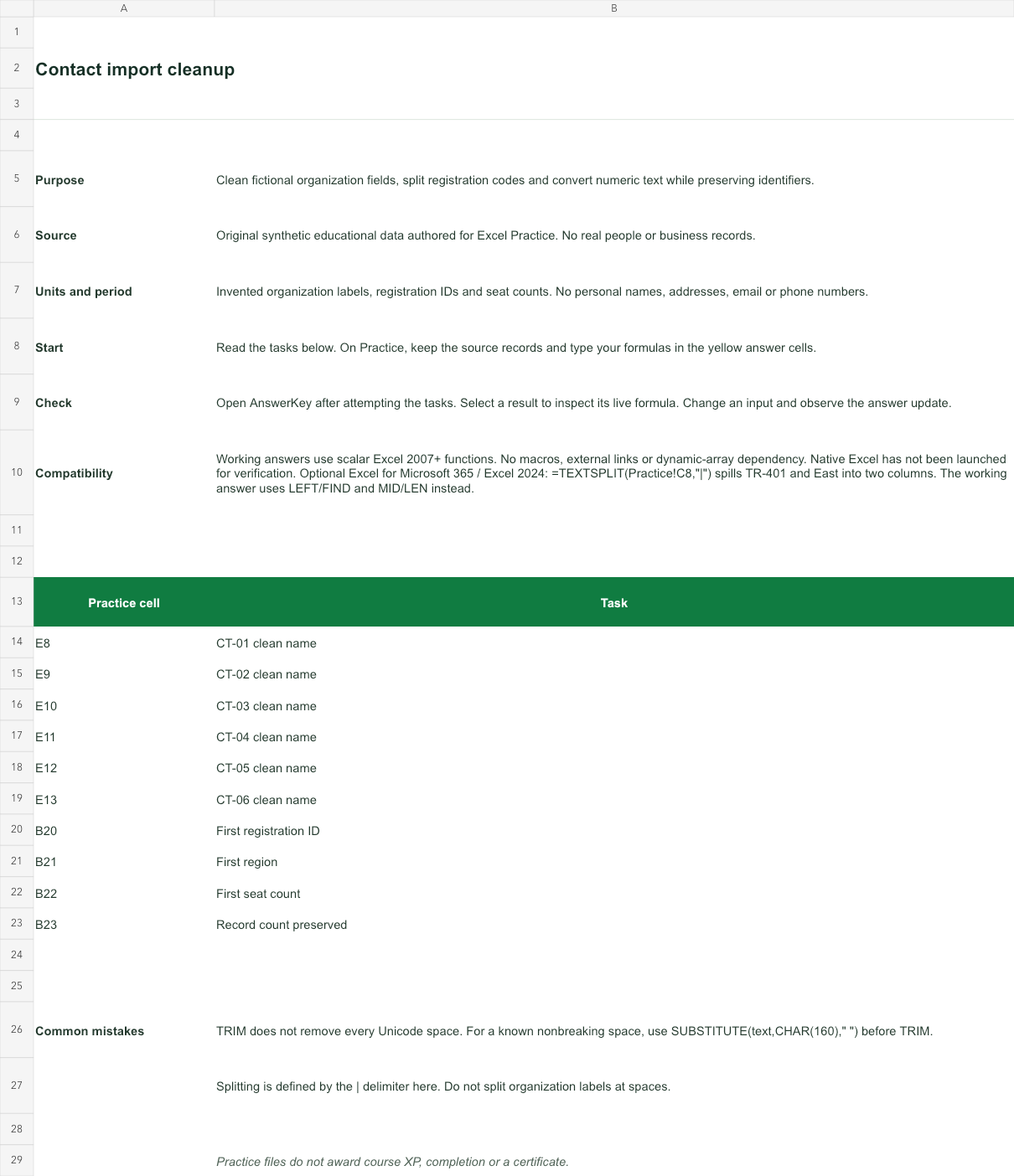
Invented organization labels, registration IDs and seat counts. No personal names, addresses, email or phone numbers.
Bank version 2026-11-02. Includes Instructions, Practice, AnswerKey; 10 live answer formulas. All source records are invented for education.
The download is an additional practice task. Its Instructions sheet identifies the source coordinates; this page’s illustrative example may use different records.
- Working answers use scalar Excel 2007+ functions. No macros, external links or dynamic-array dependency. Native Excel has not been launched for verification.
- Optional Excel for Microsoft 365 / Excel 2024: =TEXTSPLIT(Practice!C8,"|") spills TR-401 and East into two columns. The working answer uses LEFT/FIND and MID/LEN instead.